
How to create a product with bilingual names, a barcode and a retail price
In MISAll Back Office, open Data → Item Data → Add, enter the item identifiers, names, barcode, base unit and reference prices, then save and search for the item again. A consistent product record helps Chinese-speaking owners and local staff refer to the same item during purchasing and checkout.
For:Owners, product-data staff, purchasing supervisors and store managers at Chinese-owned retail and wholesale businesses outside China. Screenshots use the Back Office associated with MISAll POS.
Before you start
Check the physical packaging, supplier information and approved shelf price. You need permission to add or edit item data. Prepare an internal item code, item name, foreign-language name, real barcode, specification, base unit and reference prices.
This guide creates an ordinary single-unit stock item. It does not configure weighing, assemblies, variants or tax categories. Creating an item does not receive stock; inventory must be established through the appropriate receipt or opening-stock process.
Search existing records before adding a product. Do not create a second record for the same item, or change an established base unit merely to imitate case-to-bottle conversion.
The example product record
| Field shown in the UI | Example | Meaning |
|---|---|---|
| Item No. | DOC-WATER-001 | The internal identifier. Agree a coding rule before saving. |
| Item Name | 演示矿泉水 500ml | The Chinese name used in this demonstration. |
| Foreign Name | Demo Water 500ml | An English name for the same product and specification. |
| Barcode | DEMO500 | An internal tutorial code, not a manufacturer barcode or registered GS1 identifier. |
| Model/Spec | 500ml | Identifies the capacity or specification. |
| Base Unit | 瓶 | Bottle; one bottle is one inventory unit in this example. |
| Ref. Buy | 2.00 | A reference buying price, not historical inventory cost. |
| Ref. Sale | 3.50 | A base selling price; configured pricing rules may affect the actual sale. |
| Notes | 教程演示 / Tutorial demo | Identifies demonstration data. |
The example does not specify a national currency and has tax calculation disabled. Item Category is left blank to keep the walkthrough simple; real stores should apply their established category structure.
Step 1 — Open Item Data and check for duplicates
- Sign in to Back Office and select Data.
- Open Item Data. Search by the item number, name or barcode before adding a new record.
- If the same item does not already have an active record, choose + Add.
Navigation may appear across the top or in a left icon rail depending on window size. The feature path is still Data → Item Data. Select All Items if a category filter is restricting your search.
Step 2 — Enter names, barcode, unit and prices
Enter the item number, item name and foreign name shown above. The Item No. label says “Leave blank to auto-generate”; the walkthrough uses a manual code so that purchasing and checkout examples can be matched easily.
- On Basic Info, enter Barcode
DEMO500, Model/Spec 500ml and Base Unit 瓶. - Set Ref. Buy to 2.00 and Ref. Sale to 3.50.
- For this ordinary stock item, leave Disable, Non-stock Item and Weighed unchecked. Do not add wholesale tiers or auxiliary barcodes for this exercise.
- Check that both names identify the same capacity and pack size.
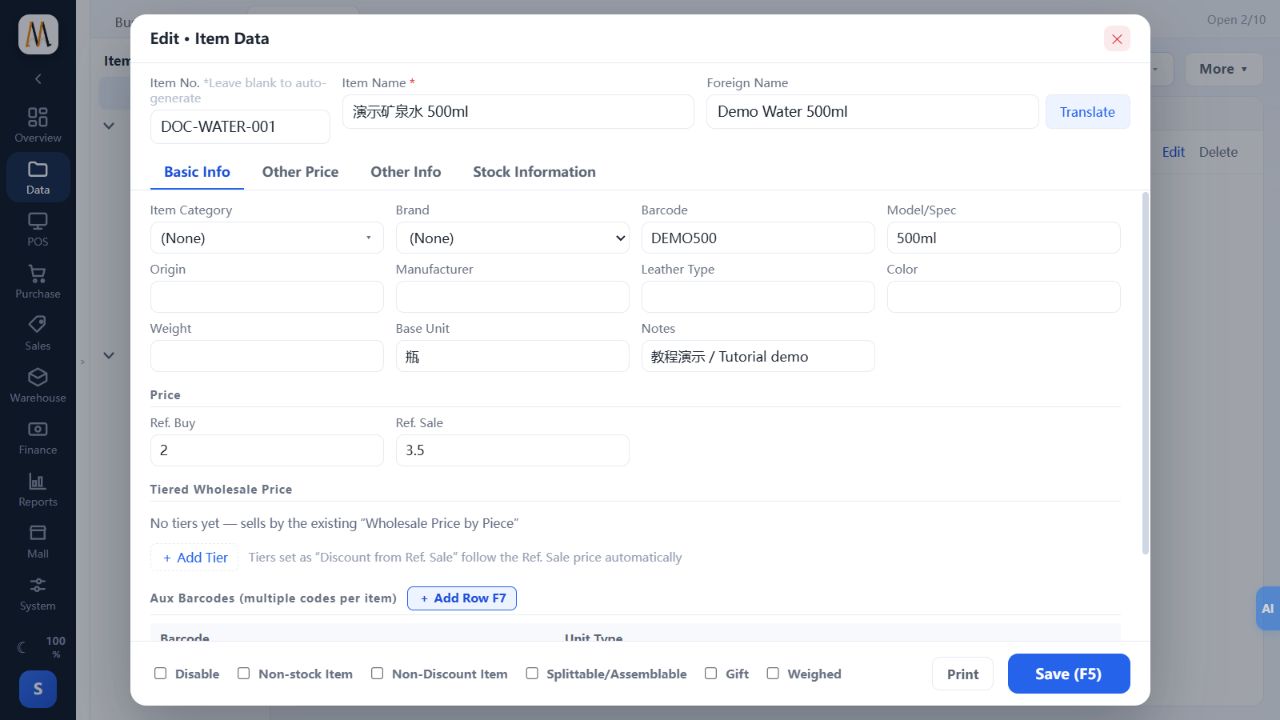
Use names that clearly identify the brand, size and packaging. Have someone familiar with local product terminology review the Foreign Name, including any output from the Translate button.
Step 3 — Save, then search again
- Select Save (F5) and wait for the save result.
- Return to the list. Enter
DOC-WATER-001in Enter Keyword and press Enter. - Confirm the intended item is listed, with Ref. Buy 2.00 and Ref. Sale 3.50.
- Select Edit to inspect complete names and identifiers if narrow table columns truncate them.
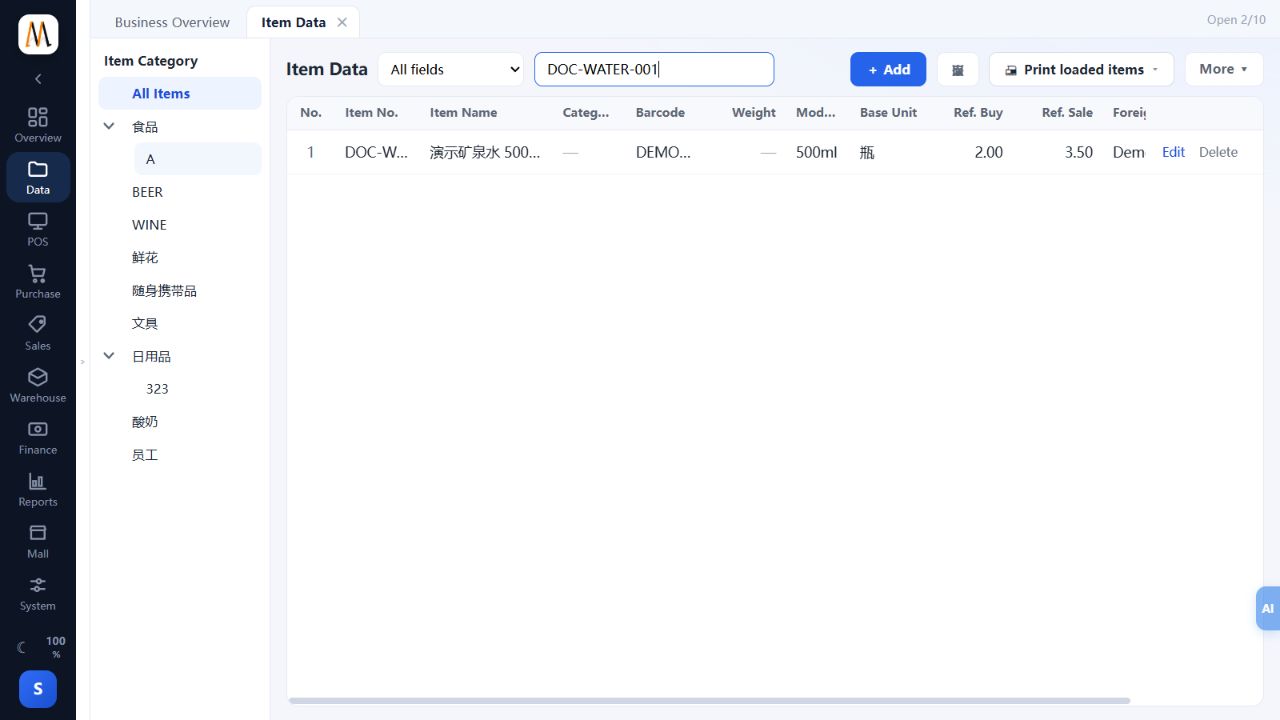
Typing the fields is not the completion check. The item should save successfully and be found again. Do not close a form that still indicates unsaved changes.
Step 4 — Hand the record over to purchasing and checkout
Use DOC-WATER-001 as the shared reference for the owner, purchasing staff and cashier. Then complete these separate checks:
- Establish real stock: receive goods or use the appropriate opening-stock process. A reference buying price is not a receipt. See the purchase receipt and approval guide for the basic workflow and edition boundaries.
- Check at the POS: find barcode
DEMO500in a test environment. The cash sale example verified a price of 3.50 and a two-bottle total of 7.00. - Check effective pricing: Ref. Sale is base item data. Enabled promotions, membership rules, wholesale tiers or other configured rules may change a transaction’s price.
The walkthroughs used one isolated database for verification. This does not promise instant refresh in every deployment. Where a register uses an offline item cache or another server, follow the existing update procedure instead of creating a duplicate record.
Keep Chinese and local-language product data consistent
| Area | Recommended practice |
|---|---|
| Identity | Use the same internal code and actual barcode across teams. A translated name should not be the only identifier. |
| Item Name and Foreign Name | Keep the capacity, packaging and specification consistent in both names. |
| Interface language | Staff may choose their interface language. Switching languages does not automatically rewrite stored product names or units. |
| Base unit | Agree whether a unit means bottle, case or piece. This guide uses bottles only. |
| Price | Verify both the base price and the store’s effective pricing rules and currency. |
Common problems
| Problem | What to do |
|---|---|
| Save fails or an item number is duplicated | Search that code first. The correct action may be editing an existing record rather than adding another. |
| The saved item cannot be found | Use All Items, clear unnecessary filters, search the full item number and confirm the correct business database. |
| A barcode selects the wrong item | Check the real barcode, primary barcode and auxiliary barcode assignments for conflicts. |
| The English screen still shows a Chinese item name | Stored item data and interface language are separate. Check Foreign Name and whether the particular screen or template uses that field. |
| The POS price differs from 3.50 | Check units and active store, promotion or member pricing before repeatedly changing Ref. Sale. |
Frequently asked questions
Does Foreign Name automatically replace the POS item name?
No such automatic replacement should be assumed. Foreign Name is a separately stored field. Its use depends on the screen or template. The English POS walkthrough still displays the stored Chinese Item Name.
Why is stock still zero after creating the item?
An item record defines the product. It does not add inventory. Record the real quantities through the appropriate receiving or opening-stock process.
Is Ref. Buy the same as inventory cost?
No. Ref. Buy is a pricing reference. Inventory cost depends on receipt records and the business database’s costing rules.
What if the item has several barcodes?
The form includes Aux Barcodes, but this guide does not configure them. First establish whether the codes represent the same unit or different packs, then follow the appropriate barcode or multi-unit procedure.
Completion checklist
- The item can be found by its code.
- The Chinese name, Foreign Name, barcode and specification identify the same item.
- The base unit is clear, Ref. Buy is 2.00 and Ref. Sale is 3.50.
- Disable and Non-stock Item were not selected accidentally.
- Staff understand that creating an item, receiving stock and making a sale are separate operations.
Continue with the complete cash checkout tutorial. Use the paired Chinese guide when training the owner or Chinese-speaking management team, keeping the same codes and price examples.
About this walkthrough
Screenshots show the actual application in an isolated teaching company. The illustrated workflow was checked on 17 October 2026; reference version 26.10.202. No real customer payment or tax submission is involved. Click an image to view its full-size original.
Continue with the complete manual
MISAll POS — Complete User Manual · MISAll Back Office — Complete User Manual · MISAll Business Manager (Enhanced Edition) — Complete User Manual