
MISAll POS — Complete User Manual
Follow the operational sequence: set up the business, practise daily tasks, then learn verification, troubleshooting and maintenance. Every chapter includes steps, completion checks and important boundaries.
Choose an edition and a learning path
MISAll serves Chinese-owned supermarkets, convenience stores, wholesale businesses and retail shops overseas. POS supports checkout. Back Office manages store operations. MISAll Business Manager (Enhanced Edition) focuses on purchasing, sales documents, inventory and business accounts.
Steps
- For a shop with tills, train cashiers with the POS manual and owners or managers with the Back Office manual. Cashier accounts and back-office operator accounts are managed separately.
- For customer orders, wholesale dispatch and stock control, follow the Enhanced Edition path: master data, receiving, delivery, payments and reconciliation.
- Enhanced Edition does not include POS checkout, membership/promotion management, the Audit Centre or tax-authority integration. Ordinary tax calculation is a separate capability.
- Choose your edition first, then check company options and permissions. A missing menu can be an edition restriction rather than an installation problem.
Each staff member knows which edition and account to use, and who may approve documents or reconcile balances.
Enabled options, permissions and custom translations can differ between businesses. Confirm your edition before following a workflow.
Install, launch and update
The installer language and the application language are separate settings. The current installer uses English. A first launch without a saved preference defaults to Simplified Chinese; an existing language choice is preserved.
Steps
- Obtain the correct installer through your MISAll service channel and verify whether it is POS, Back Office or Enhanced Edition. The icon alone is not sufficient.
- Before an update, record the current version, server and company database. Confirm a backup exists and reconcile any pending offline sales.
- Complete the installer. If the application asks for a server, follow chapter 003. POS also needs the correct store and till registration.
- After updating, sign in, open a historical document, check stock and preview a print layout. If a database upgrade is requested, the responsible administrator should back up before proceeding.
The correct edition opens the intended company, with historical records and print settings available.
Do not overwrite one till’s local data with another store’s files, or clear local data while offline transactions remain unsent.
Connect to the server and select a company
The server stores shared business records. A company database contains one set of business accounts. Database credentials are different from operator or cashier credentials.
Steps
- Open Connection Settings on the sign-in screen. The responsible administrator enters the confirmed server, port and database connection details.
- Test the connection, then apply it and reconnect. A successful test is followed by checking that the company list and sign-in actually work.
- Verify the server and company name displayed before signing in. Select the correct company when several independent businesses share a server.
- Initialize POS online before preparing offline operation. If connection fails, follow chapter 072 while preserving existing local records and settings.
The intended company name appears and its expected products and historical documents can be queried.
Keep connection credentials with the administrator. No shared default password is required by this tutorial; do not expose a database directly to the public internet.
Sign in and separate staff responsibilities
Back-office operators control management functions; cashiers control checkout actions. Use the system administrator for setup and maintenance, and individual accounts for routine work.
Steps
- In Back Office or Enhanced Edition, select your operator and enter your own password. In POS, use your assigned cashier number and password.
- Check the active operator, store and warehouse. When cashiers change, use the shift handover process rather than sharing one person’s shift.
- An administrator assigns module access, editing, approval, export and cost visibility in Operator Permission. POS cashier rights are maintained under the back-office POS menu.
- If a required action is unavailable, record its name for the responsible manager. Lock the till when leaving it and complete the shift before finishing work.
Your own account can perform the assigned role, while sensitive actions remain controlled.
Demo credentials are for the isolated teaching environment only and are not a recommended production account policy.
Switch languages and keep terminology consistent
Interface language, foreign product names and print language affect different content. Switching to English does not translate stored product names, warehouses or remarks automatically.
Steps
- Use the language selector on the sign-in screen, choose English or Simplified Chinese, and sign in to check the menus.
- Maintain both the local and foreign product names with consistent units, variants and barcodes. Do not create duplicate stock records merely to represent two languages.
- For store-specific terms, use System → Custom Translation, find a phrase, edit the intended language and save. Agree on a glossary before changing common terms.
- Check receipt and label language, fonts and layouts separately. Preview examples containing Chinese, English and long product names before testing physical output.
Owners and local staff can identify the same product and transaction by code while using their preferred interface language.
Chinese product names or units in English screenshots are stored demo data, not evidence that the interface failed to switch.
Work across computers, warehouses and stores
Computers connected to the same company share business records. Warehouses distinguish stock; stores and tills distinguish checkout activity. These concepts serve different purposes.
Steps
- Use one agreed server/company configuration and individual staff accounts. Verify the company name on each workstation.
- Create warehouses to match physical stock ownership. Stores needing separate stock must have the correct warehouse mapping, not just different store names.
- Register each POS workstation against its assigned store and till. Investigate an occupied till before clearing any device data.
- Filter management queries by warehouse, store, cashier and date. Record inter-store stock movements with transfer documents.
- For remote or cross-border access, use the controlled network arrangement provided by your service team and test stability and recovery.
Stock by warehouse and sales/shifts by till can be distinguished.
A shared company does not imply automatic multi-company consolidation or synchronization of every local printing option.
Sign in, start a shift and enter the float
Confirm the store, till and cashier before trading. The opening float is cash already in the drawer, not sales revenue.
Steps
- Sign in with your assigned cashier number and password. Complete online initialization before first use.
- If Start Shift appears, count the opening cash and enter the actual amount. Investigate an existing open shift instead of creating a duplicate.
- Check the connection status, cashier and sales mode. Ordinary retail sales must not start in return or customer-delivery mode.
- Confirm the scan field accepts input and the printer has paper. Use chapter 023 to hand over an earlier shift.
The intended cashier and store are active, a shift is open and its float agrees with the physical count.
Record cash withdrawals as withdrawals; do not reduce recorded sales to adjust the drawer.
Scan, search, change quantities and sell unbarcoded items
POS accepts barcode scans, text searches and touch selection. Check the selected variant, unit and price every time.
Steps
- Focus the product input field and scan. Without a scanner, enter a name or item code, press Enter and select the correct result.
- For multiple identical items, scan again or use the quantity function. Check the merged quantity and keep scans out of numeric editing fields.
- Before switching units, confirm the conversion and unit barcode are configured. A case and a bottle have different prices and stock quantities.
- Choose the required colour or size for a variant; its full barcode identifies that variant directly. Use the authorized unbarcoded-sale function for items without a barcode.
- Delete the incorrect unpaid line. Clear the entire basket only when abandoning that unpaid sale; completed transactions require the appropriate return process.
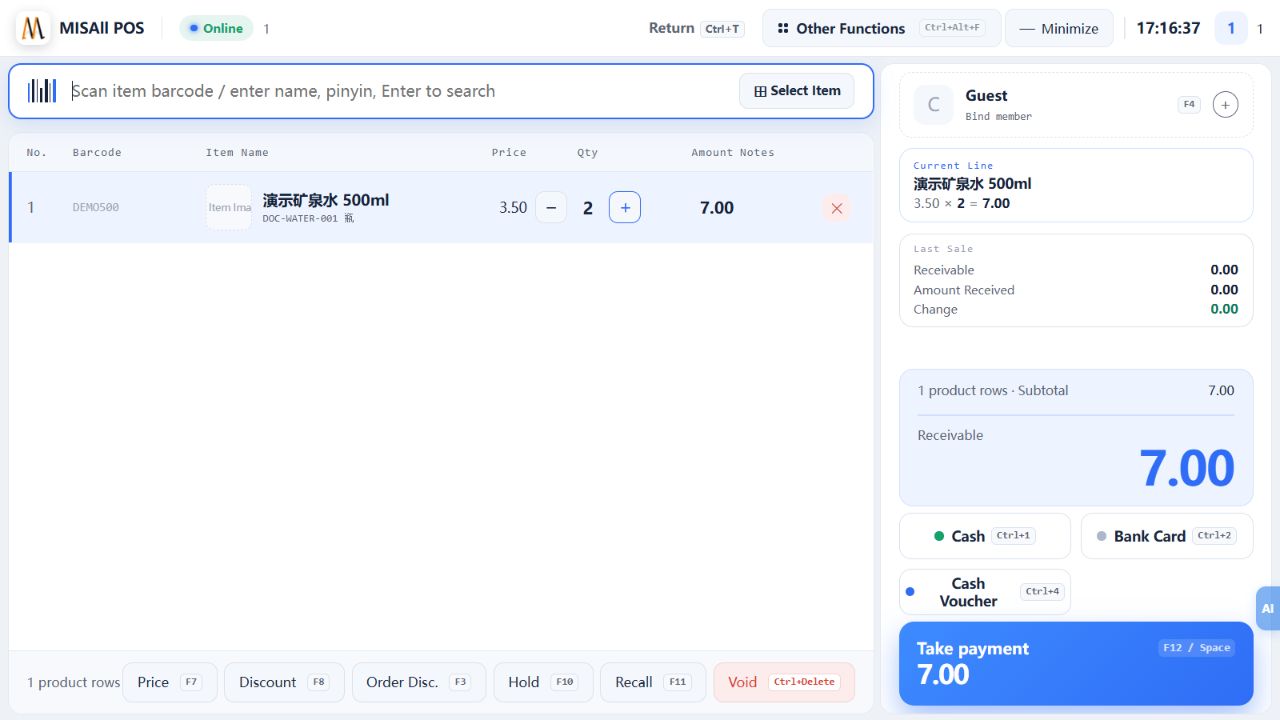
Basket lines, quantities and total agree with the goods being purchased.
Investigate missing barcodes, inactive products, local copies and variants before creating a duplicate item.
Worked cash sale: total 7, cash 10, change 3
This verified example sells two bottles of Demo Water at 3.50 each: total 7.00, cash tendered 10.00 and change 3.00.
Steps
- Enter DEMO500, confirm item DOC-WATER-001 and set quantity to two.
- Choose Cash, enter the 10.00 actually handed over and verify change of 3.00 with zero remaining.
- Set receipt printing as required, confirm once and wait for the result.
- Record the successful sale number, give the change and query that number in sales history.
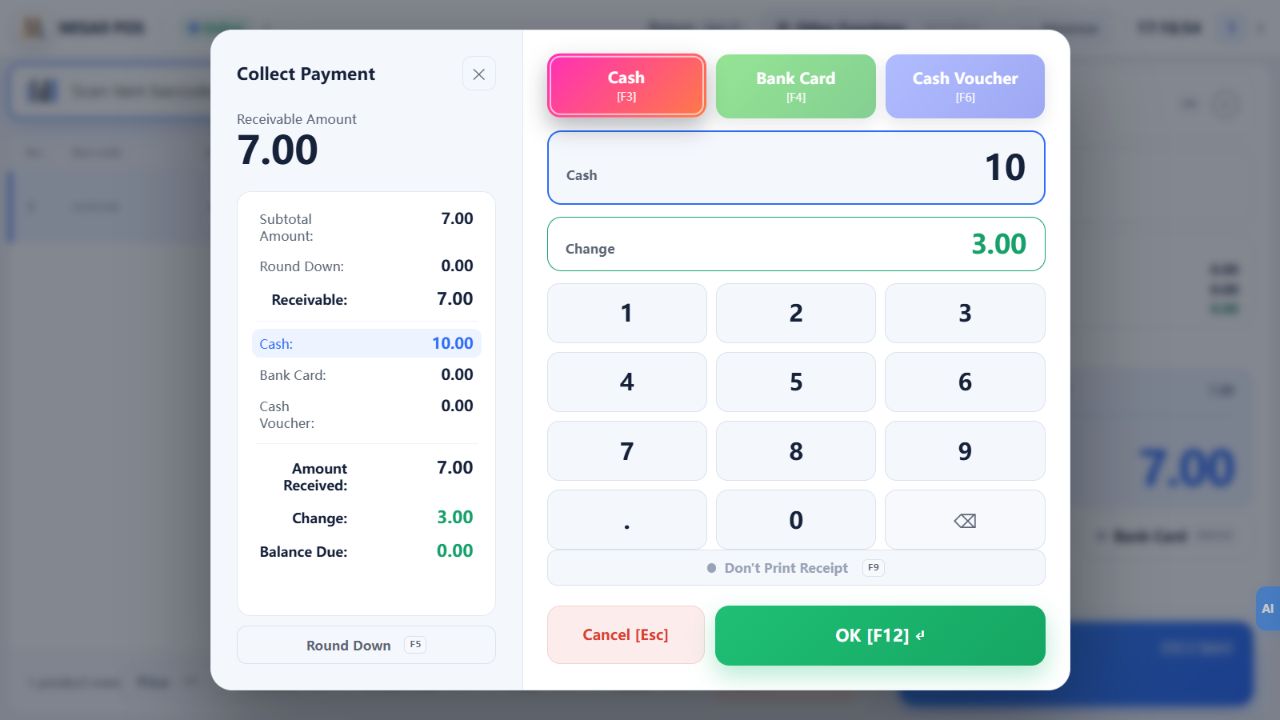
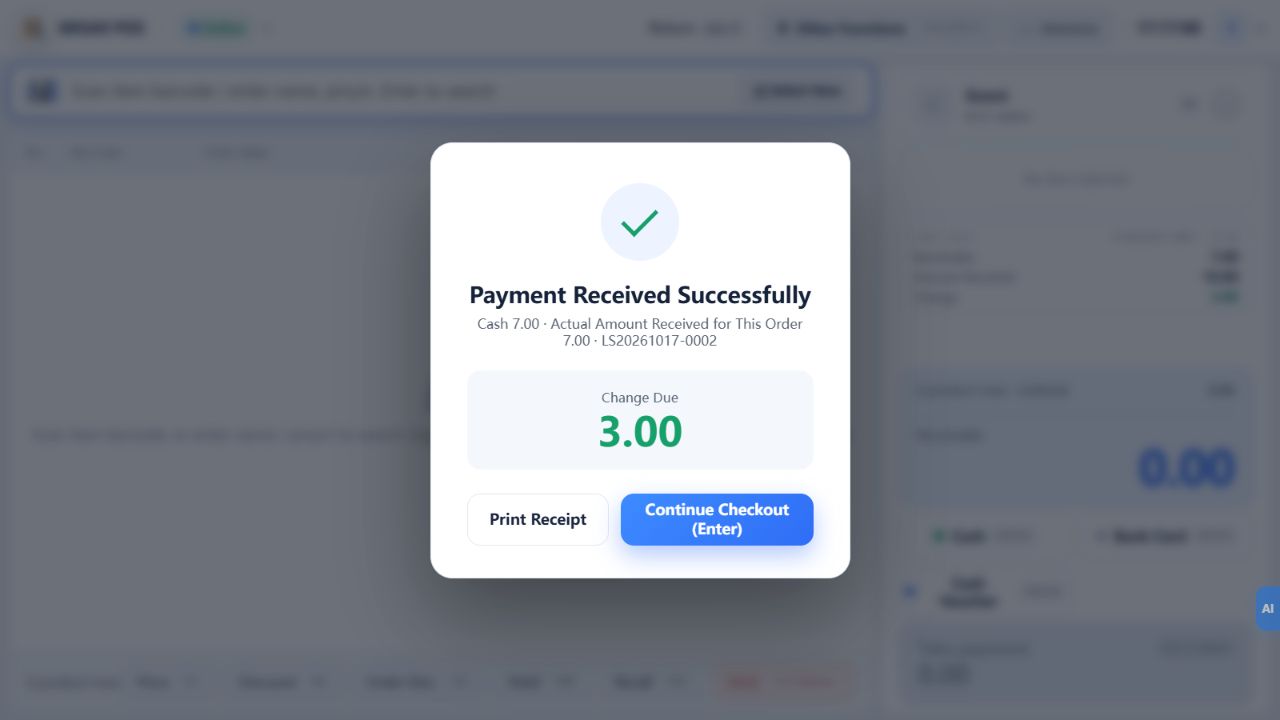
The success message and history identify the same sale, with quantity two, total 7.00, cash 10.00 and change 3.00.
Amounts are in the demo company’s monetary unit, not a specified national currency. The linked worked example includes every screenshot.
Card, other methods and split payments
The payment dialog can combine methods. Selecting Card does not by itself prove that every card terminal is integrated or that a charge succeeded.
Steps
- Open payment, check the amount due, then select each configured method and enter its amount.
- For a total of 7.00, card 5.00 plus cash 2.00 leaves zero remaining. Non-cash amounts must not exceed the total; excess tender requiring change must come from cash.
- Bind the correct member before using stored value. Follow chapter 018 for vouchers instead of treating them as unrestricted cash.
- Verify external payment success before confirming the sale. Where a terminal is integrated, reconcile both its result and the software status.
- Check the method breakdown in sales history, not only the overall amount received. Maintain method names in the relevant POS settings.
Net amounts by method equal the sale total and match the external payment evidence.
For card 5 plus cash 5 against a total of 7, change is 3: the record contains card 5 and net cash 2.
Hold, recall and cancel an unfinished sale
A held sale preserves an unpaid basket while a customer is away. It is neither a completed sale nor a deposit-paid Layby.
Steps
- Check the basket and member, select Hold and confirm. Serve the next customer after the basket clears.
- Use Recall and identify the intended basket by its time, goods or note rather than its row position.
- If another basket is active, follow the prompt to hold it before recalling the target basket.
- Recheck quantities, member and prices before payment. Use line deletion or clear-sale only for an unpaid transaction and observe permission prompts.
The correct customer’s goods and membership return, and checkout creates one completed sale.
If a hold is missing, check store, terminal and connection mode. Do not charge a completed sale again as if it were a hold.
Identify members and verify prices and points
Identify the member before checking the actual price and benefit applied. Member prices, fixed discounts, promotions and points do not necessarily stack.
Steps
- Use the member function, normally F4, and enter the card number or phone number. Verify the person and card type.
- Inspect basket prices and discounts. Member-priced, promotional and non-discountable products can follow different rules.
- If a benefit is wrong, check the member benefit type, product member price and store rules before manually changing prices.
- After payment, verify the points change and use the points ledger when tracing a discrepancy.
- Before serving the next customer, confirm the previous member has cleared or select the new member.
The member, final prices and points record agree, and the applied benefit can be explained.
Back Office controls card types and points rules. Entering a member number does not activate every discount.
Pay with stored value and reconcile top-ups
Stored value is a member balance. Purchases, top-ups and refunds must be reconciled separately.
Steps
- Bind a stored-value member and verify the card and balance before opening payment.
- Enter the amount to use. If the balance is insufficient, reduce that amount and complete the remainder with an allowed method.
- After success, check both the sale and balance movement. Investigate uncertain results before attempting another debit.
- For a top-up, use the online top-up function and verify the actual payment method and amount before confirming.
- Have an authorized person handle lost cards, account closure or balance corrections through the appropriate workflow.
Each debit and top-up has a matching record and the balance movement is explainable.
Not every member card is a stored-value card. Offline availability depends on the supported configuration and on-screen restrictions.
Discounts, promotions, rounding and authorization
Price changes, discounts and rounding are different adjustments. Confirm the discount display convention before entering a number.
Steps
- Scan and inspect the promotional price or gift condition. If it is absent, check dates, store scope and products instead of adding discounts repeatedly.
- Use line or whole-sale discounts only with permission. A payable rate of 80 means pay 80% of the original price; 20% OFF means reduce it by 20%.
- Follow cashier permissions for price changes, gifts and rounding. A required supervisor authorization must be completed by the supervisor.
- Verify the discounted total and rounding before payment, then reconcile them in history and shift reports.
The reason for the adjustment, its convention and the final amount agree.
Do not assume every promotion stacks in every mode. Check cached data and the actual selling price when offline.
Use vouchers and redeem loyalty points
Voucher payment and points redemption are different workflows. Where voucher numbers are required, validate the actual number instead of typing an arbitrary deduction.
Steps
- Select Voucher in payment. If a Number button appears, enter the voucher and check the amount and eligibility returned.
- Complete the remainder using an allowed method and retain the link between the voucher and sale.
- For points redemption, select the member and redemption item, then verify points, quantity and stock before confirming.
- Check the points ledger and redemption record afterwards. Use an authorized correction process for mistakes instead of issuing a second gift.
Voucher amounts match their records, and points deducted match the goods actually handed over.
Voucher validation depends on configuration. An unspecified promotional code is not automatically a supported payment channel.
Return goods against the original sale
Use the original sale where possible so products and refund values remain linked to the original transaction. Recording a return and actually refunding money are separate checks.
Steps
- Open Returns. If original-sale returns are enabled, find the sale by date and number and select the items being returned.
- Enter the actual returned quantity without exceeding the remaining returnable quantity. Check return mode, negative quantities and the refund total.
- Verify the refund method. External card refunds require the configured device workflow and original payment evidence.
- Confirm, retain the return number and inspect the original sale and return in history. Print the return record when needed.
- If abandoning the return, exit return mode before the next ordinary sale.
Only the received goods were returned, the return record is queryable and the actual refund has evidence.
Direct returns depend on store options and permissions. Check date, store and returnable quantities before concluding that an original sale is missing.
Find a sale and reprint its receipt
Sales history is the first place to establish whether checkout completed. No paper does not mean no sale, and reprinting should not create another transaction.
Steps
- Open Sales Details from Other Functions, normally Ctrl+J.
- Choose retail or the relevant document type, include the transaction time in the date range and search by document number.
- Check goods, quantity, amount due, methods, cash tendered and change. Net cash equals tendered cash minus change.
- Reprint only after identifying the correct original sale. Investigate the printer instead of charging again.
- If no record appears, check store, date boundaries, connection mode and pending offline uploads.
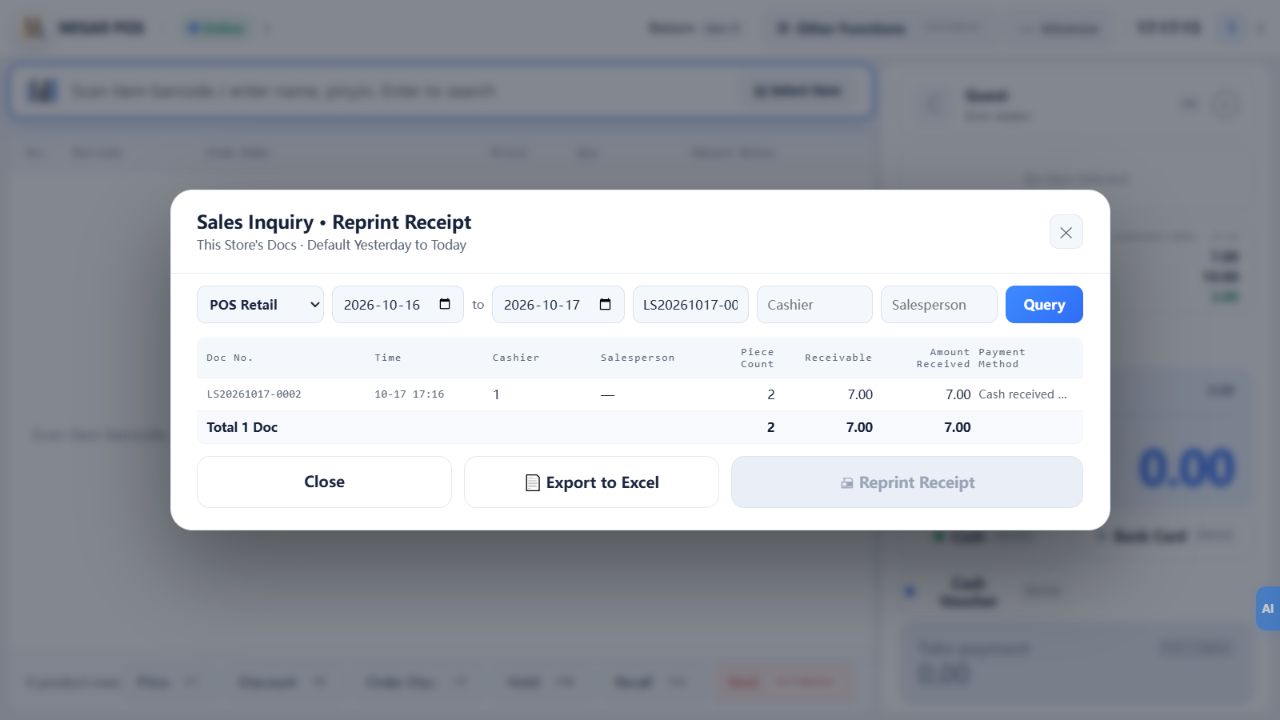
The transaction is identifiable by number, its cash figures reconcile and reprinting produces no new sale.
“Received” can refer to gross tender or net receipt in different windows. Read it together with change and the field context.
Sell offline and verify synchronization
Offline selling requires an initialized local data copy. Uploading sales after reconnection is separate from submitting tax invoices.
Steps
- While online, download and check the local product and store data. Verify till registration and the functions required for offline use.
- Use the supported offline mode during an outage and confirm the sale is saved locally. Preserve that computer and its data.
- After reconnection, inspect the pending count and use Upload when needed. Do not clear local data, rebind or reinstall while transactions remain pending.
- Sample-check uploaded sale and shift records by number in Back Office. Confirm pending sales reach zero and original amounts are preserved.
- Check and handle tax invoices separately for the configured country. Offline sales synchronization does not automatically submit tax invoices.
Pending local sales are resolved, matching original records exist on the server and customers were not charged twice.
Card creation, top-ups, Layby and external services may require connectivity. Cached prices are not live server prices; full offline promotion equivalence is not assumed.
Recover an uncertain checkout result
If success was not displayed, establish the original transaction’s state before trying again.
Steps
- Keep the original screen, payment evidence, time and amount. Look for an uncertain-settlement or sale-saved message.
- Use Recover Unconfirmed Settlement and follow the prompts with the original store and cashier.
- If the original sale number is returned, query it. A saved sale needs reprinting or follow-up handling, not another charge.
- For card payments, check the terminal’s transaction status separately; software recovery does not replace that check.
- If uncertainty remains, stop further charging for this transaction and give the responsible person the time, amount, reference and error message.
There is a clear final state and one sales record for the business transaction, without duplicate charging.
Clearing caches, deleting local data or changing accounts is not the normal recovery method.
Close a shift and reconcile X/Z reports
An X report reviews the current shift; a Z report records a completed shift. POS shift closure and an Argentine fiscal printer’s day closure are separate actions.
Steps
- Resolve held sales and uncertain settlements, and upload pending offline sales where possible.
- Open the shift function from Other Functions and review the X report, including all payment methods.
- Count the drawer and reconcile opening float, net cash sales, refunds and withdrawals. Enter the actual counted cash.
- Confirm shift closure and check its completion and Z report. Reprint the existing report when needed.
- Use Back Office Shift Query to review shifts. After offline shifts upload, generate or reprint their reports using the available function.
Cash differences are explained and shift records agree with sales and payment evidence.
Unsent offline sales affect server report completeness. Fiscal closure is covered separately; do not force it merely to search for a sale.
Layby deposits, instalments and collection
Layby reserves goods while a customer pays over time before collection. Unlike a held basket, it contains payments and an outstanding balance.
Steps
- Add goods in POS, choose New Layby in Other Functions, enter the customer details and proceed to the deposit.
- Enter the payment, check any minimum-deposit requirement and record the Layby number and remaining balance.
- For another payment, select the original Layby in POS or Back Office → POS → Layby Management. Recheck its current server status and balance.
- Do not exceed the remaining balance. Once paid, mark collection only when goods are actually handed over and verify the resulting sale and stock movement.
- For abandonment, have the manager check the store agreement and use the appropriate cancellation/default workflow with the correct refund. Do not record each instalment as a separate goods sale.
Deposits, instalments, balance and the final collection sale can all be traced to one Layby.
Layby requires an online connection. Stored value and vouchers are not supported for its deposit/instalment flow. Charges depend on the store’s applicable agreement and configuration.
Customer delivery, part payment and credit sales at POS
Customer delivery mode records a sale against a customer account. The current confirmation dialog allows a payment now and leaves the unpaid balance as receivable.
Steps
- Open Sales Delivery from Other Functions, select the customer and check warehouse, customer pricing and quantities.
- At settlement, compare the amount due with the actual payment. Select a settlement account when receiving money.
- Use the no-payment/credit option for full credit, or check the outstanding amount after a part payment.
- After confirmation, verify document approval and the customer balance. If saved unapproved, have the responsible operator resolve it.
- Collect the remainder in Back Office with a sales receipt allocated to the original customer and outstanding document.
Money received plus the receivable agrees with the delivery total.
The old statement that customer delivery can only be fully on credit no longer describes this dialog. Do not create a duplicate delivery in Back Office.
Keyboard shortcuts and touch checkout
Use the shortcuts displayed by the current screen. The same key can perform different actions in the basket and payment dialog.
Steps
- Common basket defaults are F6 quantity, F7 price, F8 line discount, F10 hold, F11 recall and F12 payment.
- In payment, F9 toggles receipt printing and Enter/F12 confirms. Inspect the amount before confirming.
- Adjust workstation keys in Shortcut Settings under Other Functions, avoiding conflicts with staff conventions.
- In touch mode, choose products by category and verify the selected line before changing quantity, price or deleting it. Check readability after resizing columns or scaling the interface.
- Lock the till when leaving and resolve unfinished work before handover. Use a bilingual staff reference card for common actions.
Staff distinguish item editing from payment confirmation, and the actual screen layout is readable.
Stores may customize shortcuts; this manual does not overwrite those choices.
Configure receipt printing, drawer, display and scales
POS hardware settings primarily apply to the workstation. Verify the equipment before configuring software. Ordinary receipt printers and fiscal printers have different integration paths.
Steps
- Install the required official driver or connection and verify the printer’s own test output.
- Open POS parameters, choose the actual printer, connection, paper width and mode, then preview and print a store test receipt.
- Connect and test the drawer according to its interface. Distinguish a serial customer display from a second computer screen.
- Distinguish live serial scales from barcode-label scales. Verify serial settings for the former and barcode prefix, item and weight/amount segments for the latter.
- Save and recheck after restarting. Reconfigure when replacing a till or printer; a shared layout does not select the local hardware automatically.
Receipts are readable and complete, the drawer/display respond as intended and scale values match the goods.
The manual captures software interfaces, not a physical equipment acceptance test. See chapter 075 for Argentine Epson fiscal connections.
Distinguish receipts, barcode labels and fiscal documents
Sales receipts, product labels and fiscal documents serve different purposes. Paper width alone does not identify them.
Steps
- Decide whether you need a customer receipt, a price label or a country-specific fiscal document.
- Print ordinary receipts from checkout/history and labels from the product or supported receiving workflow with the correct quantity.
- Verify the unit barcode and price on labels so a case label does not display a bottle price.
- Generate fiscal documents through the configured country workflow rather than imitating their appearance in an ordinary template.
- Record the printer, paper, layout and test result for each output.
Purpose, data source and physical device match.
An ordinary receipt is not described as a universally valid tax invoice.
Troubleshoot scanners, scales, drawers and displays
Check the device and connection before software settings to separate wiring faults from data issues.
Steps
- Test the scanner in a plain input field for complete characters and an ending Enter, then return focus to the POS scan box.
- For label scales, match the barcode format. For serial scales, check port, baud rate and weight unit.
- Connect the drawer to the specified interface and verify printer/trigger settings; similar-looking sockets are not necessarily compatible.
- Check serial displays and secondary monitors separately for power, cabling, display mode and software setup.
- Change one setting at a time, record the original value and test result, and return to a known configuration when needed.
The fault can be localized to hardware, connection or software setup with a repeatable test.
Use the manufacturer’s wiring and electrical specifications, not connector appearance alone.
Print layouts, paper, fonts and labels
Layouts determine content and placement; local settings choose the output device. Saving a new layout does not necessarily make it active.
Steps
- Use the authorized design entry in the print menu or POS layout function, and copy/save a new layout before editing.
- Set actual paper width, margins, fonts and line columns. Insert data fields rather than typing a single transaction’s amounts.
- Preview long names, multiple lines, tax, totals and barcodes, checking page breaks and clipping.
- Save and explicitly check the active layout, then print from the business page. Verify shared layouts and local printer selection separately.
- Import/export within the matching document type. For labels, check dimensions, gaps, counts and unit prices separately.
The active layout matches the preview, key fields fit and barcodes scan.
Fonts and modes affect physical output. Preview is not a physical printer test, and fiscal-device formats differ from ordinary templates.
Payment succeeded but nothing printed
Establish the transaction state before investigating printing. Do not charge again when a successful sale number exists.
Steps
- Record the success number and find the original sale, checking amount and methods.
- Inspect the print toggle, selected printer and active layout, including whether output went elsewhere.
- Check power, paper orientation, paper/cover warnings, offline status and the system print queue.
- If the device self-test works, investigate the driver, paper and application output mode.
- After correction, reprint the original sale. For uncertain fiscal results follow chapter 076 instead of issuing another fiscal document.
One original sale remains and any replacement output refers to it.
Reprinting an ordinary receipt is different from issuing a new tax invoice.
Find the cause of slow checkout confirmation
Separate device checking, sale saving, fiscal issuance and ordinary printing to locate the delay.
Steps
- Record approximate times for confirmation, status changes, success and paper output, together with the sale number.
- Compare similar simple cash transactions with those using membership, external payment or fiscal issuance while keeping the environment comparable.
- For device checks, inspect IP and printer state; for saving, inspect server/database connectivity; for delay after success, inspect printing.
- Give support the version, store, time, amount and relevant status screenshot while omitting unnecessary customer information.
- Resolve uncertain transactions before experiments. Repeated confirmation, force-closing or charging again is not a performance fix.
The slow stage is identified with a traceable example.
No fixed checkout time is promised; performance depends on computers, network, database and connected services.
Barcode not found or wrong selling price
Check product data, unit, pricing rules and synchronization in that order.
Steps
- Search the full barcode in Item Data and inspect primary/auxiliary codes, inactive status and variants.
- Check whether the scan identifies a bottle or case and verify the unit conversion and price.
- Review customer level, membership, promotions, tiers, manual overrides and validity dates.
- For offline tills, check the local copy and refresh it online without clearing pending sales.
- Test one item, the threshold quantity and a quantity below the threshold, recording expected and actual prices.
The final price has an identifiable rule and the barcode selects the intended item and unit.
The reference selling price is not necessarily the final price in every workflow.
Troubleshoot server connection failures
Failures can originate in the network, server service, connection details or company. Preserve existing configuration and offline records.
Steps
- Determine whether one workstation or the whole shop is affected. Check the server first for store-wide failures and the local connection for isolated ones.
- Verify the server address after router/network changes and confirm the workstation is on the intended network.
- Test the configured address, port and company, then apply and reconnect. Have an administrator verify credentials privately.
- Use supported offline operation only where an initialized local copy exists; a newly installed workstation may have none.
- Record the exact error, time and affected computers for support instead of disabling all protection or deleting database files.
The failure scope is understood and the intended company and pending records are checked after recovery.
Network reachability alone does not prove database service or business sign-in is working.
Why sales synchronization and tax issuance are separate
Sales, payment and tax-document results are three states. An uploaded sale does not prove that a fiscal document exists.
Steps
- First verify the original sale, its amount and payment result in sales history.
- Then inspect the fiscal status, reference or error for the correct country and originating till.
- Offline upload preserves the original sale and synchronizes sales data; it does not automatically resubmit tax invoices.
- Use authorized manual recovery for the applicable country. Reconcile uncertain results before retrying.
- Maintain the link between sale and fiscal number and review outstanding exceptions.
Each state is known separately without mistaking one success for all three.
Enhanced Edition has no tax-authority interface. This chapter applies only to the relevant configured POS workflow.
Connect an Argentine Epson fiscal printer over Ethernet
The current Argentine Epson integration uses Ethernet. USB/serial sockets on the hardware do not mean the current software integration uses them.
Steps
- Record the model, firmware and self-test network settings. Connect through the store LAN or directly to the computer while avoiding address conflicts.
- Example only: with printer 192.168.1.1 and mask 255.255.255.0, a dedicated direct Ethernet adapter may use unused 192.168.1.10 with the same mask and blank gateway/DNS; internet access can remain on Wi-Fi.
- Open the actual printer IP in a browser after checking connectivity. Epson Manager access proves management-page reachability, not completed fiscal acceptance.
- Enter the actual IP in POS fiscal-printer parameters and test the connection. Verify model, serial number, sales point and training/fiscal mode.
- Have the responsible person configure real business identity, tax treatment, method codes and registration. Use an approved test environment before live issuance.
The computer reaches the intended device and software identity matches the physical printer.
Network connectivity is only the first check. Verify merchant settings, device state and actual fiscal output separately; do not copy the example IP without checking your network.
Argentine fiscal success, failure and uncertain results
Establish whether the sale was saved, then distinguish fiscal success, definite failure and an uncertain result. Uncertainty is not proof of non-issuance.
Steps
- After checkout, verify the sale reference and fiscal type, sales point and number.
- For definite failure, record the device error, resolve paper/cover/network issues and use the original sale’s manual recovery path.
- For an uncertain result, inspect physical output, device status and software reconciliation before deciding whether a document exists.
- Recover from the till connected to the original printer using the original sale, rather than recording another sale on a different device.
- Process refunds from the original sale and verify the corresponding fiscal correction and original reference.
Sales and fiscal records match and communication failures have not led to blind duplicate issuance.
Recovery mechanisms reduce duplicate risk but are not an absolute guarantee against every device/power fault. Reconcile records and actual output.
Argentine fiscal closure, open-day queries and reports
A POS shift Z report differs from the printer’s Cierre Z. Epson Manager history may list only closed fiscal days; check open-day sales in software history and current device status first.
Steps
- Find the sale by number and inspect its fiscal reference. Empty closed-day history is not a reason to issue it again.
- Use supported status or X-report functions for current-day review instead of forcing closure just to query.
- In the current Argentine configuration, Back Office fiscal-day records provide date/printer filters, document counts, software/device totals and differences.
- At business-day completion, follow the responsible person’s closure procedure and retain the Z number. A software shift closure is a separate record.
- Review unissued documents and downloaded reports, then handle submission and retention with the accountant. Downloaded does not mean submitted.
Shift, fiscal day, document numbers and report submission state are independently understood.
This chapter explains software workflow, not statutory filing deadlines. Confirm report scope and submission obligations with the relevant authority/adviser.
Missing menus, disabled buttons and hidden fields
Check edition, company options, permissions and document state in that order.
Steps
- Confirm the installed edition. Enhanced Edition does not gain POS or authority menus merely by granting permissions.
- Check multi-unit, tax, batch and bin switches; related hidden fields can be normal when disabled.
- Review operator/cashier rights and have an authorized person inspect masked costs.
- Approved, unsaved or empty documents can legitimately disable editing, approval or printing.
- Read the available hint and record the exact entry, state and version before escalating.
The restriction is identified as edition, feature, permission or business state.
Do not enable every option merely to make a button available.
Send a useful support report
A useful report identifies the same transaction and a reproducible sequence, rather than only saying “slow” or “wrong amount”.
Steps
- Record version, edition, language, store and online/offline state.
- Describe the menu, steps, expected outcome and actual message, with time and document number.
- For amounts include goods, quantities, units, prices, tax and methods; for stock include warehouse and approval state.
- Capture relevant screen context while hiding credentials, payment secrets and unrelated personal information.
- State whether all computers are affected, whether it repeats and what has already been tried. Preserve uncertain payments before further action.
Support can locate the event using its version, time and reference.
Never publish database credentials or full customer databases in tutorial comments.