
How to complete a cash sale in MISAll POS
To complete a cash sale in MISAll POS, add the items, verify the quantity and price, enter the cash tendered, and confirm payment. Then check the success message and the saved sales record. This guide uses a 7.00 sale paid with 10.00 cash, with 3.00 change.
For:Cashiers and store managers at Chinese-owned supermarkets, convenience stores and retail shops outside China; also suitable for training local English-speaking staff.
Before you start
- Sign in with the cashier account assigned to you. Check the store and operator shown at the top of the POS screen.
- The item must already have a verified barcode and selling price. See Create a product in MISAll Back Office.
- This example uses an online, single-currency cash sale to a guest customer. Tax calculation, promotions, membership discounts, electronic payments and tax-authority connections are outside this example.
- If a paper receipt is required, configure and test the printer on that register first. This walkthrough verifies the software transaction, not a physical fiscal printer.
All amounts use the same demonstration database currency. No particular national currency or tax treatment is implied. Use your store’s approved prices and configuration.
The transaction you will complete
| Field | Example |
|---|---|
| Item No. | DOC-WATER-001 |
| Item Name / Foreign Name | 演示矿泉水 500ml / Demo Water 500ml |
| Barcode | DEMO500 — an internal tutorial code |
| Quantity and unit price | 2 bottles × 3.50 |
| Amount due / cash tendered / change | 7.00 / 10.00 / 3.00 |
There is one product row containing two bottles. “1 product rows” describes the number of lines, not the number of units sold. The stored Chinese unit 瓶 means bottle.
Step 1 — Sign in and start your shift
Open the POS application, select English on the login screen, enter your Employee No. and Password, then choose Log In. If a shift-opening prompt appears, enter the actual opening cash float before continuing.
The opening cash float is the cash already in the drawer, not sales income. The isolated demonstration used zero. Your store should count and enter its actual float. An existing open shift may not show this prompt again.
Check that you are making a sale, not a return. This guide uses the Online state shown at the top of the screen.
Step 2 — Add the item and verify the basket
- Click Scan item barcode / enter name, pinyin, Enter to search. Scan the real item barcode, or enter
DEMO500and press Enter in the demonstration database. - Confirm item
DOC-WATER-001and a unit price of 3.50. - Set the quantity to 2. In this example, click the item’s + button once after adding the first bottle.
- Verify that the row amount and Receivable are both 7.00.
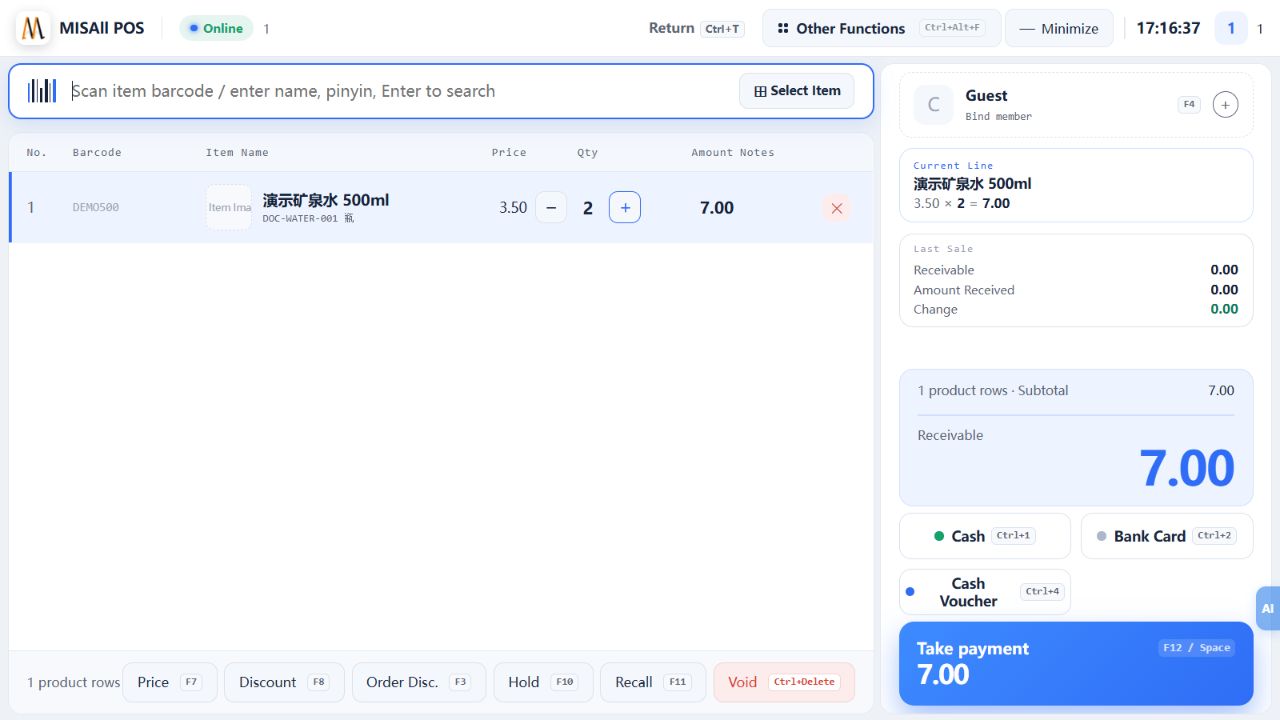
If the price differs, check the selected item, pack size and applicable pricing rules. Use Price F7 only if you have permission and a valid reason to change the price.
Step 3 — Enter cash tendered and check the change
- Select Cash Ctrl+1.
- In Collect Payment, verify Receivable Amount 7.00. Enter the 10.00 actually handed over by the customer. The example can also use the quick amount button 10.
- Check Change 3.00 and Balance Due 0.00: 10.00 − 7.00 = 3.00.
- Check the receipt-printing option, then select OK [F12] once after receiving the cash. Wait for the result.
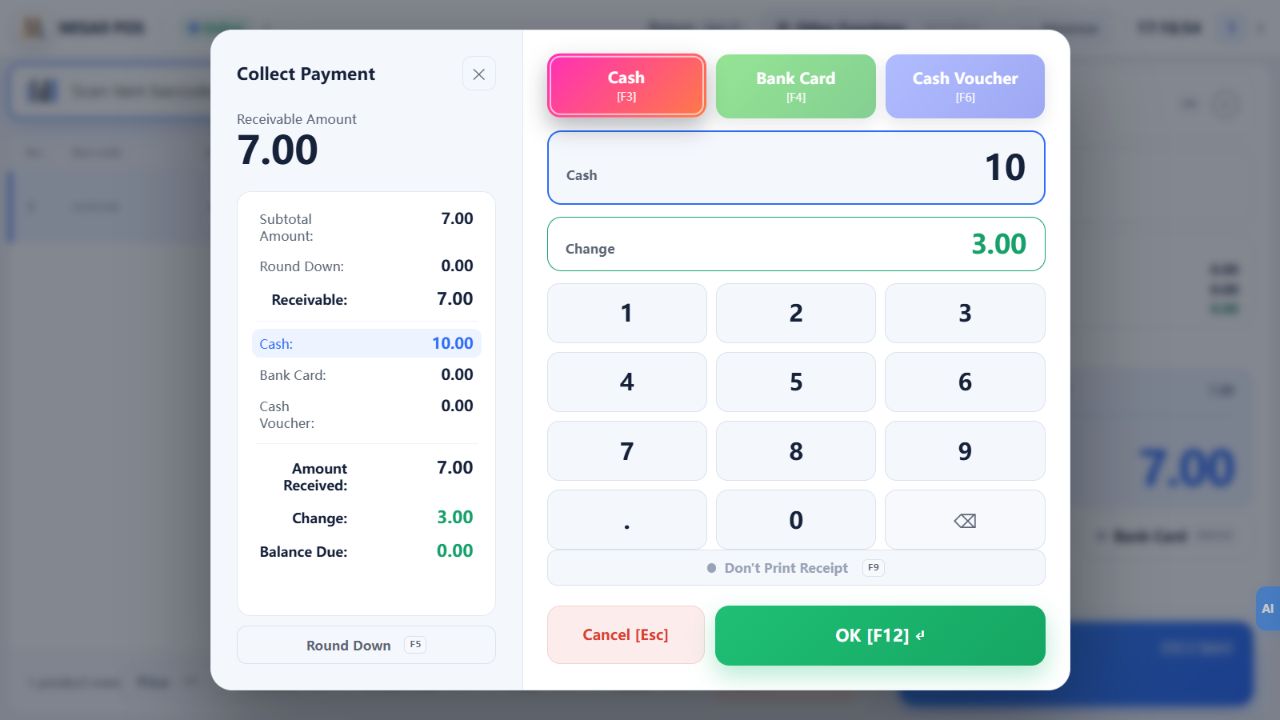
In this version’s payment dialog, that field is the amount retained after change: 10.00 − 3.00 = 7.00. The main screen’s “Last Sale” panel instead shows the 10.00 cash tendered and lists 3.00 change separately. Reconcile the amount due, cash tendered and change together.
Step 4 — Confirm success and give the change
Wait for Payment Received Successfully. Check the document number and Change Due 3.00, then give the customer their change. The English demonstration generated LS20261017-0002; your transaction will have its own document number.
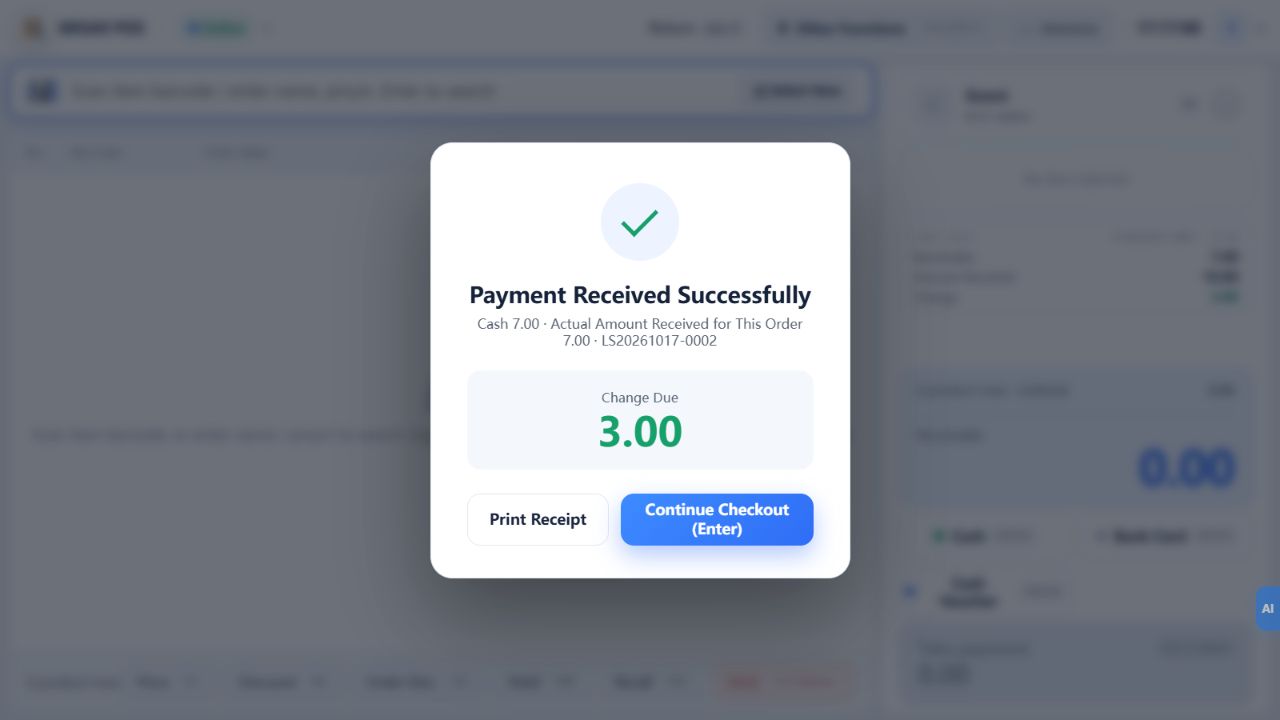
Select Continue Checkout (Enter) for the next customer. A successful sale and a printed paper receipt are separate checks. If a success document exists but no paper appears, find that sale before troubleshooting or reprinting. Do not charge the customer again merely because printing failed.
Step 5 — Verify the saved sale
- Open Other Functions → Sales Detail Ctrl+J in the Accounting group.
- In Sales Inquiry · Reprint Receipt, select POS Retail and a date range covering the transaction.
- Enter the document number in Doc No. and select Query.
- Verify Piece Count 2, Receivable 7.00 and the net Amount Received 7.00. The payment description records cash received of 10.00 and change of 3.00.
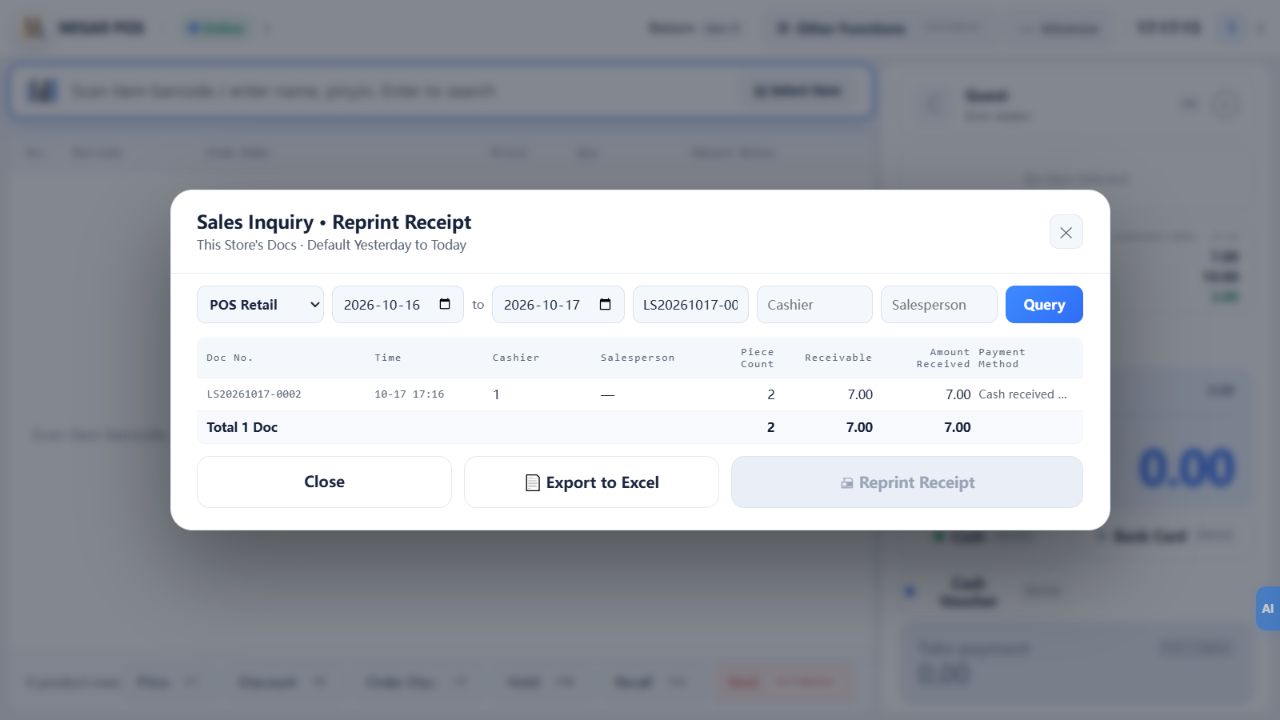
If no result appears, check the store, date range, document type and document number before deciding whether the sale needs further action.
Troubleshooting
| Problem | What to check first |
|---|---|
| No item appears after scanning | Focus the item input, check the barcode in Item Data and whether the item is disabled, or search by name. |
| The total is incorrect | Check the unit, quantity, repeated scans, price and any enabled promotion before taking payment. |
| The confirmation button is unavailable | Check the entered payment and remaining Balance Due. Do not select a payment type the customer did not actually use. |
| Payment takes a long time | Wait for a clear result. If the outcome is uncertain, query the sales record before retrying, then investigate network, printing or an enabled fiscal channel. |
| Payment succeeded but no receipt printed | Confirm the saved sale, then check the print option, printer connection, paper and queue. Reprint the existing document if appropriate. |
Frequently asked questions
Is a barcode scanner required?
No. This example used keyboard input. You can also search or use Select Item. Test any scanner with the actual register setup.
Will switching to English translate the product names?
Not automatically. Interface language and stored product data are separate. This demo retains a Chinese item name and the unit 瓶, while Foreign Name stores Demo Water 500ml.
Does successful payment mean a fiscal invoice was issued?
No. This guide does not activate a tax-authority or fiscal-printer workflow. Stores using those features must also verify their country- and channel-specific invoice status.
Can I use these steps for a refund or shift close?
This guide covers one cash sale. Returns, shift closing and fiscal day closing require their own procedures.
Related guides and scope
Managers can standardize product codes, bilingual names and prices with the Back Office product guide. Purchasing staff can follow the Enhanced Edition purchase receipt guide to understand inventory posting and verification.
This article does not cover offline sales, card authorization, membership, promotions, refunds, shift closing or tax filing. Available controls depend on the user’s permissions and store configuration.
About this walkthrough
Screenshots show the actual application in an isolated teaching company. The illustrated workflow was checked on 17 October 2026; reference version 26.10.202. No real customer payment or tax submission is involved. Click an image to view its full-size original.
Continue with the complete manual
MISAll POS — Complete User Manual · MISAll Back Office — Complete User Manual · MISAll Business Manager (Enhanced Edition) — Complete User Manual