
How to receive purchased goods, approve the receipt and verify stock
In MISAll Business Manager (Enhanced Edition), use Purchase → Purchase Receipt to record goods actually received. Verify the supplier, warehouse, quantity and price, save the draft, then approve it. Finish by checking Warehouse → Current Stock. This example receives 10 bottles at 2.00 each.
For:Purchasing staff, warehouse staff and managers at Chinese-owned wholesale and retail businesses outside China.
Understand receiving, approval and payment
The Enhanced Edition’s Chinese name is 秘奥智能进销存; its actual English interface identifies it as MISAll Business Manager. This guide covers purchasing and inventory, not POS checkout or tax-authority integration.
| Action | Purpose |
|---|---|
| Enter a Purchase Receipt | Record the supplier, receiving warehouse, items and prices for goods actually received. |
| Save | Store a draft for review. Saving alone is not proof that stock increased. |
| Approve | Move the checked receipt to Approved and verify its inventory effect. |
| Settle Payment | Handle payment as appropriate. This example leaves it unchecked, following the screen’s “Default: On Account” state. |
This demonstration has tax calculation disabled and does not cover multiple units, batches, expiry dates, foreign currency or fiscal invoices. The Enhanced Edition does not provide tax-authority integration; ordinary tax calculation depends on the business database configuration.
Before you start
- Ensure you have the appropriate permissions to create and approve receipts and view stock. Your organization may assign entry and approval to different people.
- Count the physical goods and verify the specification and agreed price before creating the receipt.
- Prepare item
DOC-WATER-001, with the base unit 瓶 (bottle) and Ref. Buy 2.00. The product record guide explains the data preparation; use the controls available in your edition. - Have the correct supplier and warehouse records available. This example uses the fictional supplier 演示供应商 Demo Supplier and warehouse 1.
- The item starts with zero stock in the selected warehouse. All example amounts use one demonstration database currency.
Step 1 — Create the receipt and choose supplier and warehouse
- Open Purchase → Purchase Receipt. If an existing document is displayed, select + Add.
- Use the Purchase Receipt transaction type, not Purchase Return.
- Search the Supplier field and select the matching supplier record from the results. This example uses 演示供应商 Demo Supplier.
- Select the warehouse that actually receives the goods. The example uses warehouse 1.
- Check the business date, 2026-10-17 in this demonstration, and enter a traceable receiving note.
Typing a supplier name is not necessarily the same as selecting its record. Confirm the matching option. If a supplier needs to be created, check for duplicates before using the add-supplier option.
Step 2 — Add the goods and verify the line total
- Enter
DOC-WATER-001in the item search, run the search and select the demonstration water item. - Confirm the unit is 瓶, meaning one bottle.
- Set Qty to 10, using the quantity field or the row’s +/− controls. Complete the entry and verify the recalculated amount.
- Check Discount% is 100 (no discount) and Unit Price is 2.00. The line Amount and document Total should both be 20.00.
- Leave Settle Payment unchecked for this on-account demonstration.
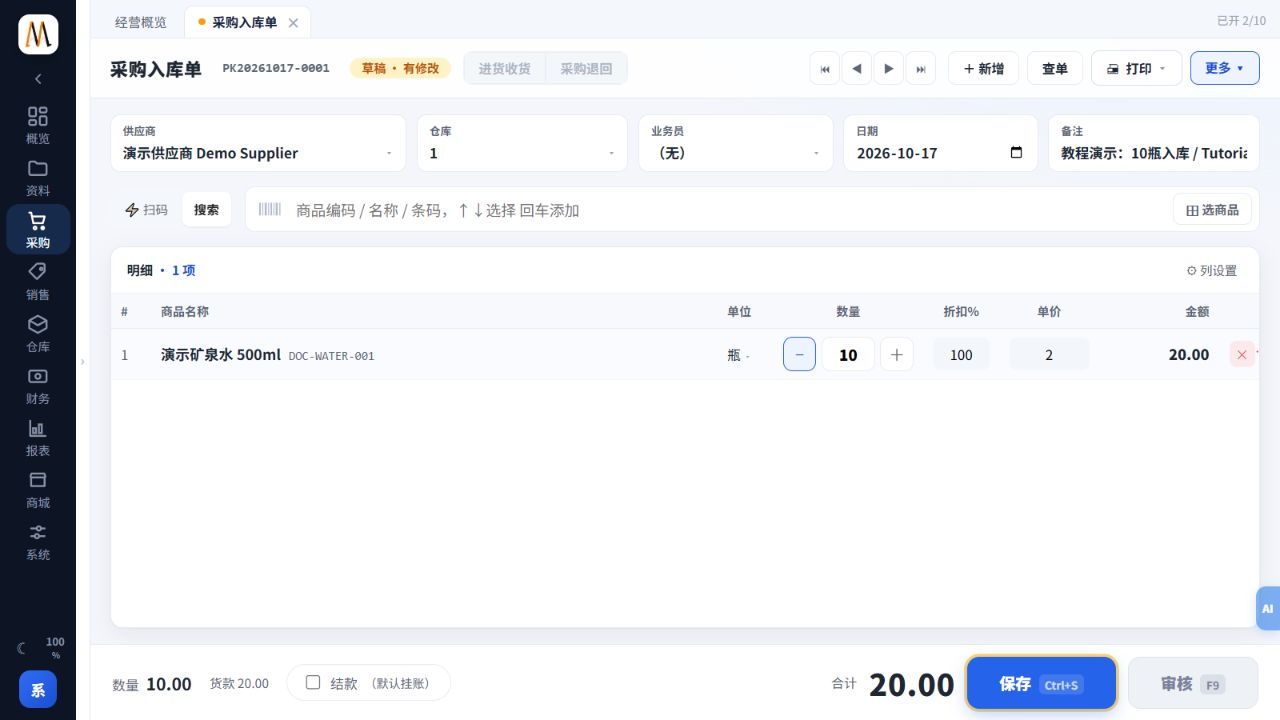
After changing a quantity, confirm that the amount reflects the change. If an old amount remains, complete the edit and investigate before approval. Do not approve inconsistent quantities and amounts.
Step 3 — Save the draft and note the document number
Select Save Ctrl+S and wait for the result. This example generated PK20261017-0001. Your business database will generate its own number.
Verify the saved draft’s supplier, warehouse, quantity 10 and total 20.00. Correct any mistake and save again. Approval may be unavailable while there are unsaved changes. A saved draft is not an approved stock receipt.
Step 4 — Approve the receipt
After completing the review required by your organization, choose Approve F9. Wait for the Approved status and verify the document number and amount again.
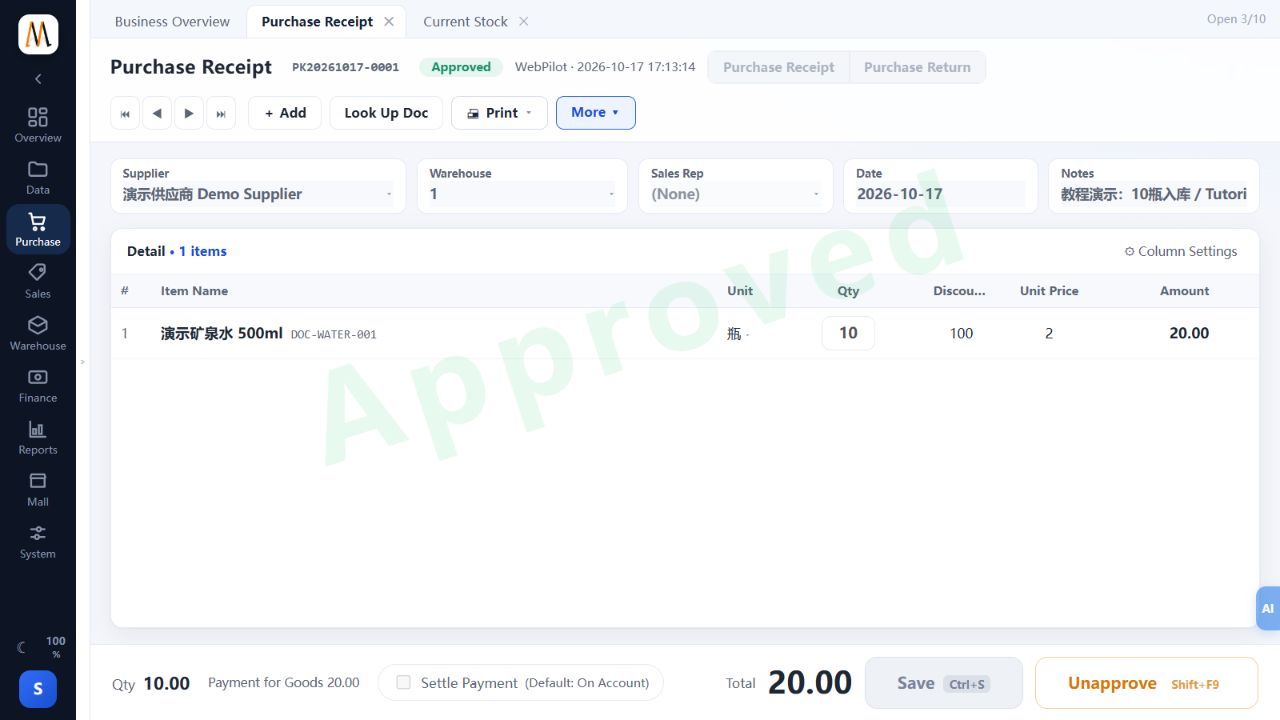
The approved example still has Settle Payment unchecked. Approval does not mean the supplier has been paid. If a mistake is discovered after approval, follow your organization’s correction process and permissions, taking linked documents into account. Do not create a duplicate receipt to replace the first one.
Step 5 — Verify the stock increase
- Open Warehouse → Current Stock.
- Enter
DOC-WATER-001in the Item filter, select warehouse 1 if needed, and choose Query. - With no other movements, the result should show Qty 10, Cost Price 2.00 and Stock Value 20.00.
- Check the item, warehouse and base unit, not just the report’s grand total.
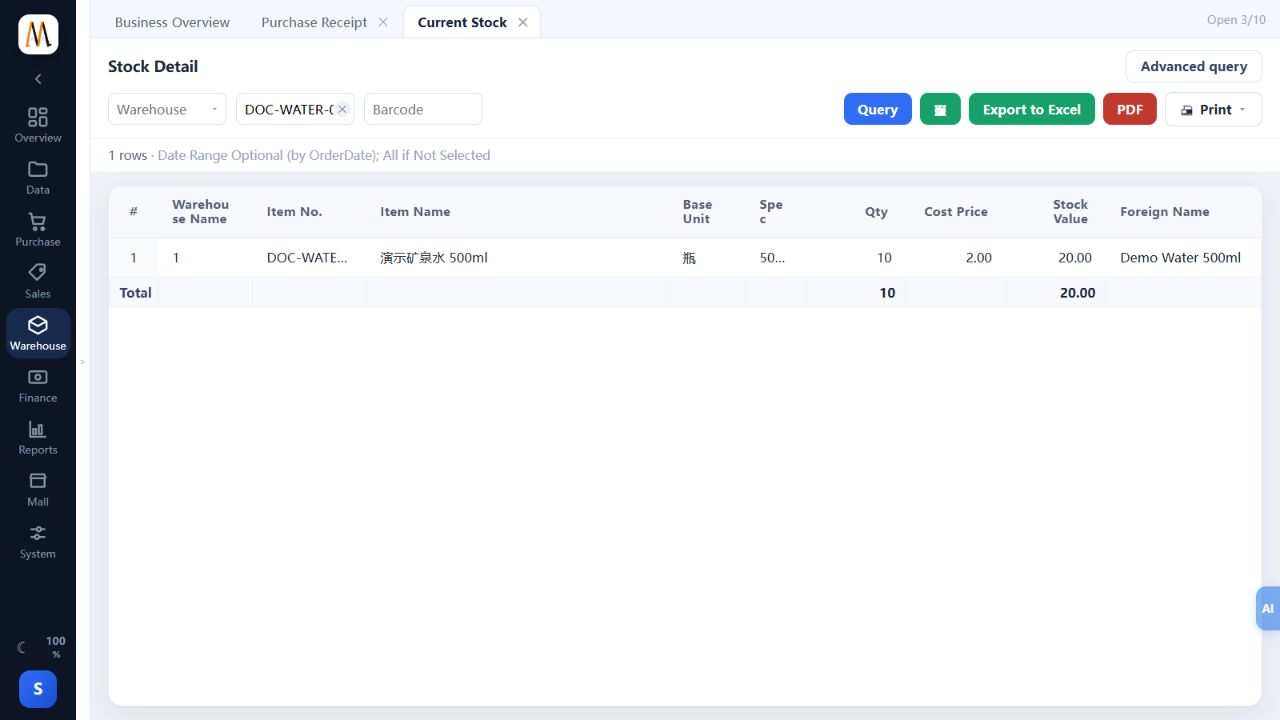
This item started with zero stock and had only this receipt, so its value is 10 × 2.00 = 20.00. For an existing item, historical stock and costing rules can mean the inventory cost differs from the latest buying price.
Additional check — Why does stock later show six bottles?
To verify the three tutorials against each other, we used a separate POS checkout process against the same isolated demonstration database. The Chinese and English demonstrations each sold two bottles:
| Stage | Stock quantity | Example stock value |
|---|---|---|
| Before receipt | 0 | 0.00 |
| After receipt approval | 10 | 20.00 |
| After two separate POS sales of two bottles each | 10 − 2 − 2 = 6 | 12.00 |
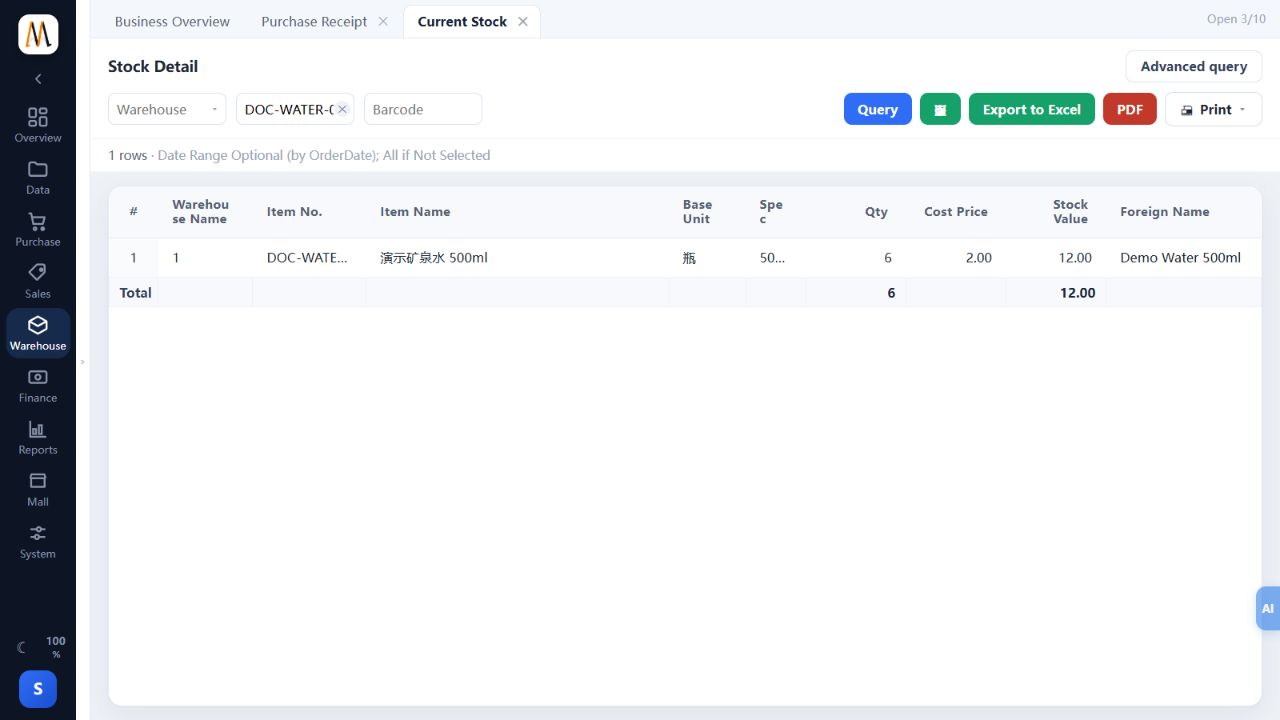
This was a dedicated tutorial verification setup. The sales were made through a separate POS workflow. It does not mean the Enhanced Edition includes POS checkout, or that every customer uses this deployment.
Troubleshooting
| Problem | Check in this order |
|---|---|
| Approve is unavailable | Confirm the document is saved, no edits remain unsaved, required information is complete and the operator has permission. |
| Stock did not increase after saving | Check whether the receipt is still a draft, then verify approval, item number, warehouse and report filters. |
| The receipt quantity differs from the goods counted | Check the base unit and actual units received. Do not guess bottle-to-case conversions from package numbers. |
| The amount is not quantity × unit price | Check discounts, tax settings and completed input. In this untaxed, undiscounted example, 10 × 2.00 must equal 20.00. |
| An approved document is missing from Look Up Doc | Check date and status filters. Select Approved or All instead of only Unapproved. |
| Stock is lower than ten | Check later sales, transfers, returns and the selected warehouse before entering another receipt. |
Frequently asked questions
Is saving enough to complete receiving?
Not for the completion check in this guide. Verify the Approved state and the resulting quantity in Current Stock.
Has the supplier been paid when the receipt is approved?
No. This example leaves Settle Payment unchecked and uses the on-account state. Payment follows the actual settlement procedure.
Does this Enhanced Edition workflow issue an Argentine fiscal invoice?
No. The Enhanced Edition does not provide tax-authority integration. A purchase receipt or stock record should not be presented as fiscal invoicing. Product editions and country-specific channels must be distinguished.
Can I copy the example’s cost for an item with existing stock?
No. The example has only this receipt and a cost of 2.00. Existing inventory must be checked against its history and the business database’s costing rules.
Completion checklist
- The delivery evidence, supplier, warehouse, date and item are correct.
- The receipt contains 10 bottles at 2.00, with no discount, for a total of 20.00.
- A document number exists, the status is Approved and stock has been checked.
- Staff understand that this example is on account; approval is neither payment nor fiscal invoicing.
Related guides: Create a bilingual product record and Complete a cash sale in MISAll POS. The paired Chinese article uses the same item codes, amounts and scope.
About this walkthrough
Screenshots show the actual application in an isolated teaching company. The illustrated workflow was checked on 17 October 2026; reference version 26.10.202. No real customer payment or tax submission is involved. Click an image to view its full-size original.
Continue with the complete manual
MISAll POS — Complete User Manual · MISAll Back Office — Complete User Manual · MISAll Business Manager (Enhanced Edition) — Complete User Manual