
MISAll Business Manager (Enhanced Edition) — Complete User Manual
Follow the operational sequence: set up the business, practise daily tasks, then learn verification, troubleshooting and maintenance. Every chapter includes steps, completion checks and important boundaries.
Enhanced Edition start-up: products to sellable stock →Create products: barcode, names, unit and prices →From purchase order to goods receipt →From sales order to customer delivery →Pay suppliers and allocate payables →Receive customer payments and allocate receivables →Enhanced Edition scope and daily checklist →
Choose an edition and a learning path
MISAll serves Chinese-owned supermarkets, convenience stores, wholesale businesses and retail shops overseas. POS supports checkout. Back Office manages store operations. MISAll Business Manager (Enhanced Edition) focuses on purchasing, sales documents, inventory and business accounts.
Steps
- For a shop with tills, train cashiers with the POS manual and owners or managers with the Back Office manual. Cashier accounts and back-office operator accounts are managed separately.
- For customer orders, wholesale dispatch and stock control, follow the Enhanced Edition path: master data, receiving, delivery, payments and reconciliation.
- Enhanced Edition does not include POS checkout, membership/promotion management, the Audit Centre or tax-authority integration. Ordinary tax calculation is a separate capability.
- Choose your edition first, then check company options and permissions. A missing menu can be an edition restriction rather than an installation problem.
Each staff member knows which edition and account to use, and who may approve documents or reconcile balances.
Enabled options, permissions and custom translations can differ between businesses. Confirm your edition before following a workflow.
Install, launch and update
The installer language and the application language are separate settings. The current installer uses English. A first launch without a saved preference defaults to Simplified Chinese; an existing language choice is preserved.
Steps
- Obtain the correct installer through your MISAll service channel and verify whether it is POS, Back Office or Enhanced Edition. The icon alone is not sufficient.
- Before an update, record the current version, server and company database. Confirm a backup exists and reconcile any pending offline sales.
- Complete the installer. If the application asks for a server, follow chapter 003. POS also needs the correct store and till registration.
- After updating, sign in, open a historical document, check stock and preview a print layout. If a database upgrade is requested, the responsible administrator should back up before proceeding.
The correct edition opens the intended company, with historical records and print settings available.
Do not overwrite one till’s local data with another store’s files, or clear local data while offline transactions remain unsent.
Connect to the server and select a company
The server stores shared business records. A company database contains one set of business accounts. Database credentials are different from operator or cashier credentials.
Steps
- Open Connection Settings on the sign-in screen. The responsible administrator enters the confirmed server, port and database connection details.
- Test the connection, then apply it and reconnect. A successful test is followed by checking that the company list and sign-in actually work.
- Verify the server and company name displayed before signing in. Select the correct company when several independent businesses share a server.
- Initialize POS online before preparing offline operation. If connection fails, follow chapter 072 while preserving existing local records and settings.
The intended company name appears and its expected products and historical documents can be queried.
Keep connection credentials with the administrator. No shared default password is required by this tutorial; do not expose a database directly to the public internet.
Sign in and separate staff responsibilities
Back-office operators control management functions; cashiers control checkout actions. Use the system administrator for setup and maintenance, and individual accounts for routine work.
Steps
- In Back Office or Enhanced Edition, select your operator and enter your own password. In POS, use your assigned cashier number and password.
- Check the active operator, store and warehouse. When cashiers change, use the shift handover process rather than sharing one person’s shift.
- An administrator assigns module access, editing, approval, export and cost visibility in Operator Permission. POS cashier rights are maintained under the back-office POS menu.
- If a required action is unavailable, record its name for the responsible manager. Lock the till when leaving it and complete the shift before finishing work.
Your own account can perform the assigned role, while sensitive actions remain controlled.
Demo credentials are for the isolated teaching environment only and are not a recommended production account policy.
Switch languages and keep terminology consistent
Interface language, foreign product names and print language affect different content. Switching to English does not translate stored product names, warehouses or remarks automatically.
Steps
- Use the language selector on the sign-in screen, choose English or Simplified Chinese, and sign in to check the menus.
- Maintain both the local and foreign product names with consistent units, variants and barcodes. Do not create duplicate stock records merely to represent two languages.
- For store-specific terms, use System → Custom Translation, find a phrase, edit the intended language and save. Agree on a glossary before changing common terms.
- Check receipt and label language, fonts and layouts separately. Preview examples containing Chinese, English and long product names before testing physical output.
Owners and local staff can identify the same product and transaction by code while using their preferred interface language.
Chinese product names or units in English screenshots are stored demo data, not evidence that the interface failed to switch.
Prepare a new store for launch
Set up master data and opening balances before verifying end-to-end workflows and training staff. Keep practice separate from live trading.
Steps
- Agree the company, warehouses, roles and opening date. Set up company details, suppliers, customers, settlement accounts and products.
- Check barcodes, units and prices, and sample-check imports. Enter existing stock through an opening-stock document; a reference purchase price is not an opening quantity.
- Reconcile opening receivables, payables and account balances. Do not re-enter historical transactions already included in those balances.
- In a practice company, complete receiving, delivery, payment and reporting. POS stores also test cash sales, returns, shifts and printing.
- After the responsible manager approves opening balances and permissions, take a backup and record the start date before live trading.
Opening product, stock, counterparty and cash records have a documented basis, and staff can complete their normal tasks.
Country invoicing, payment terminals and physical equipment require their own acceptance checks; a cash-sale demonstration does not establish them.
Migrate data and verify an upgrade
A migration includes business records, permissions, print layouts and local device settings. Signing in successfully is only the first check.
Steps
- Record product counts, stock, receivables, payables, account balances and representative document numbers at an agreed cut-off.
- Preserve the original backup and test the upgrade or import in a separate company. Restore is not a routine import operation.
- Compare the same date range and warehouse. Investigate duplicate barcodes, unit conversions, inactive products and outstanding balances.
- Import layouts into the matching document type, save and preview them. Recheck local printers, till registration and connections on each new computer.
- Synchronize pending offline sales and take a final backup before switching. Avoid recording the same live business in both systems.
Control totals and sampled documents agree, and every difference has an explanation.
Compatibility with every legacy field or integration is not assumed; validate the actual migration project.
Work across computers, warehouses and stores
Computers connected to the same company share business records. Warehouses distinguish stock; stores and tills distinguish checkout activity. These concepts serve different purposes.
Steps
- Use one agreed server/company configuration and individual staff accounts. Verify the company name on each workstation.
- Create warehouses to match physical stock ownership. Stores needing separate stock must have the correct warehouse mapping, not just different store names.
- Register each POS workstation against its assigned store and till. Investigate an occupied till before clearing any device data.
- Filter management queries by warehouse, store, cashier and date. Record inter-store stock movements with transfer documents.
- For remote or cross-border access, use the controlled network arrangement provided by your service team and test stability and recovery.
Stock by warehouse and sales/shifts by till can be distinguished.
A shared company does not imply automatic multi-company consolidation or synchronization of every local printing option.
Back up, restore and protect business records
A database backup is written to a server-side path, which may not be on the workstation you are using. Restore overwrites the target company.
Steps
- Open System → Backup Data and verify the company and destination. Record the complete path from the success message.
- Confirm the file exists on the server and retain an independent copy according to your business policy. A screenshot is not a backup.
- Before restoring, verify the target company, backup timestamp and scope. Back up the current state and have other operators exit.
- The responsible administrator selects the correct server-side file in Restore Data, checks the overwrite warning and proceeds. Sign in again and inspect key documents afterwards.
- Periodically test recovery in an isolated environment. Rebuilding the system, deleting a company and recalculating cost are separate maintenance actions.
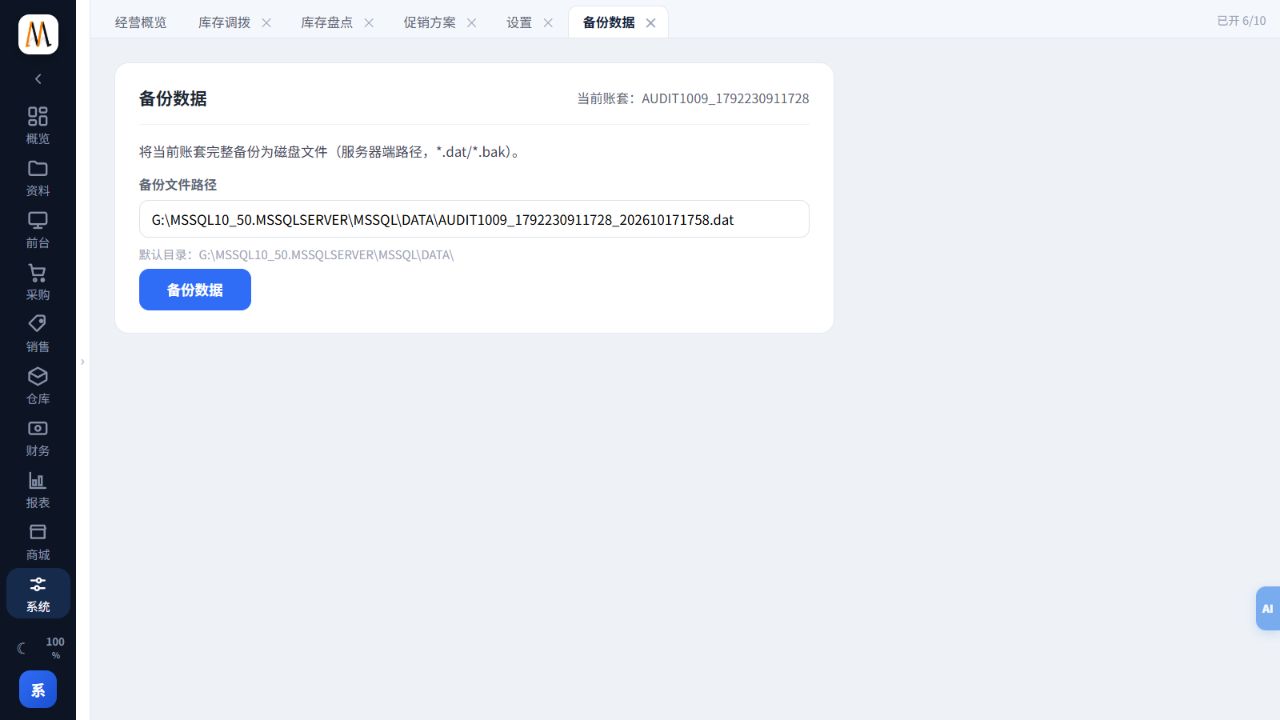
You can locate a usable backup, identify its company and date, and refer to a recovery test record.
The screenshot demonstrates the backup page; its example path is not a destination to copy onto your own server.
Create products: barcode, names, unit and prices
Purchasing, stock control and checkout share the product record. Keep a stable item code and ensure each barcode identifies the correct unit.
Steps
- Open Data → Item Data and add a record with the name, foreign name and agreed item code.
- Enter the primary barcode, category, base unit, reference purchase and sale prices. The example uses DOC-WATER-001, DEMO500, purchase price 2 and sale price 3.50.
- Configure wholesale prices, additional units, auxiliary barcodes, batches or variants only when needed and enabled.
- Save, search by code or barcode and reopen the record. Verify the same item is available in checkout or document selection.
- Treat changes to units and deletion carefully once business exists; use the proper inactive-item process for discontinued products.
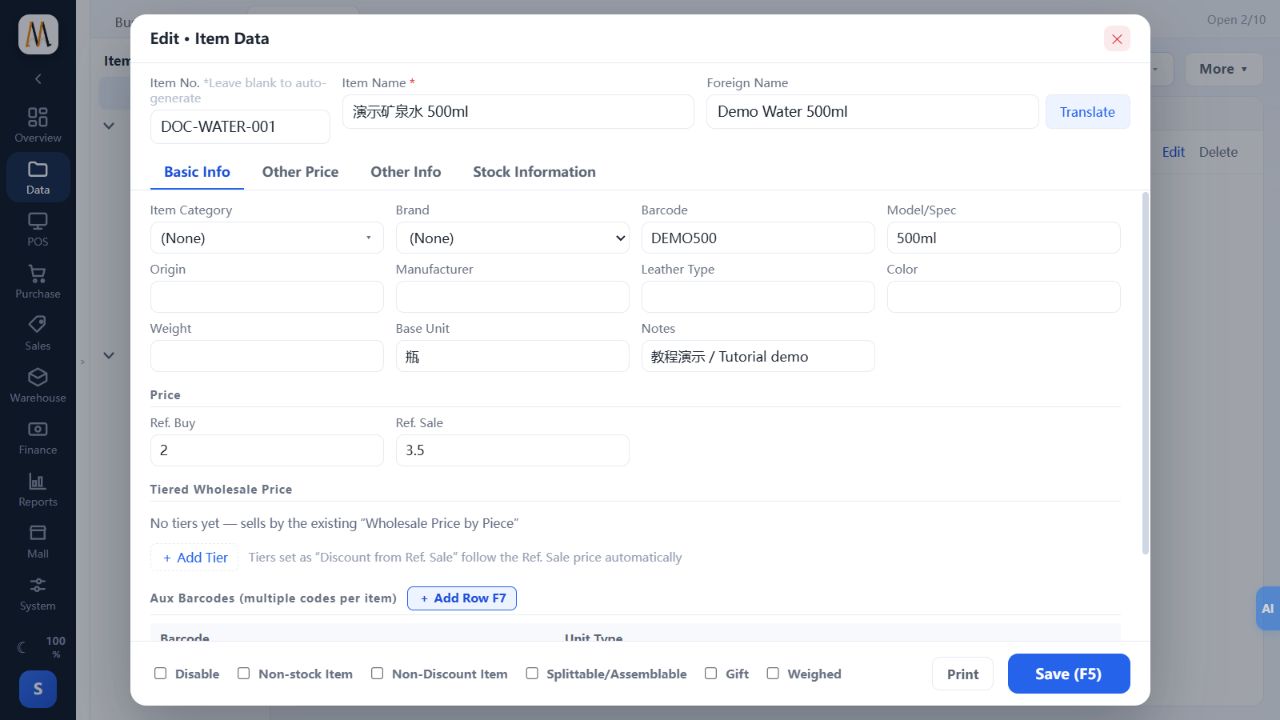
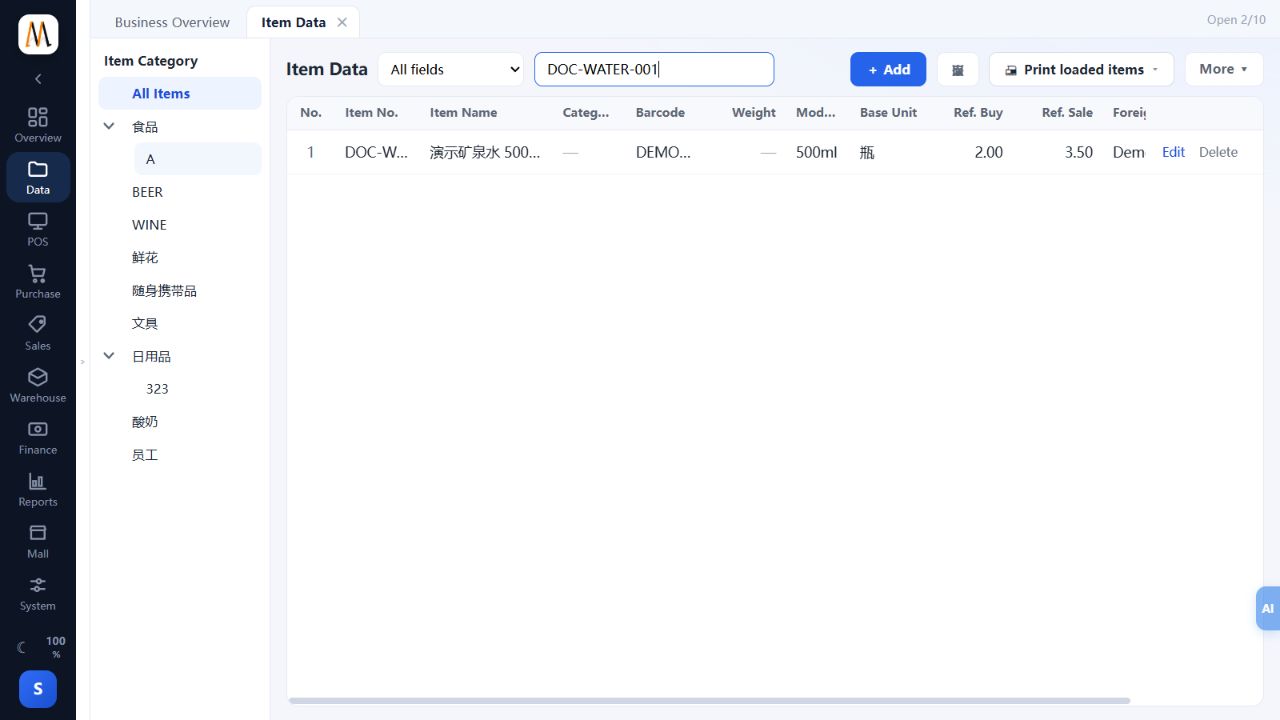
The barcode finds the correct item with the correct unit and price. Creating the record does not add stock.
DEMO500 is an internal demonstration code, not a registered international retail barcode. The old product Promotion Settings tab is not part of this workflow.
Import products and master data from Excel
Download the template from the current page and validate a small sample first. Master-data import differs from importing lines into a business document.
Steps
- Open import in the target data page and download its template. Keep barcode cells as text so leading zeros remain intact.
- Prepare a small sample and check units, categories and numeric formats. Avoid formatted text in numeric price columns.
- Inspect field mapping, preview and duplicate-code handling. Updating existing records requires a deliberate scope decision.
- Check successful, skipped and failed counts. Correct errors before importing the remainder.
- Search imported records by code and verify them in an actual document-selection screen.
Counts match expectations and key fields are correct without duplicate records or incorrect units.
Recognizing a name does not automatically create a usable stock item. AI-assisted import also requires human review.
Categories, brands and colour/size variants
Categories classify goods, brands identify brands and variants represent combinations such as colour and size. Each variant remains a separate stock item.
Steps
- Maintain categories and brands under Data, then assign products correctly. Selecting a category tree is different from editing that tree.
- When variants are needed, have the administrator enable them and maintain attributes, value groups and templates.
- Switch Item Data to the style view, add a style and choose attribute values alongside its code, name and prices.
- Review the generated combinations and barcode rules before saving. When extending an existing style, distinguish existing and newly generated variants.
- Enter quantities in the style matrix or scan a specific variant barcode. Check missing sizes as well as total style stock.
Styles, variant records, barcodes and stock correspond correctly.
Hiding the variant feature does not delete its products. Map old standalone records before reorganizing them into styles.
Multiple units, case conversions and tier prices
Distinguish the document unit from the base stock unit. If one case contains 24 bottles, two cases represent 48 bottles.
Steps
- Enable multiple units and set bottle as the base unit. For a simple case/bottle structure, leave the intermediate unit empty and set case with conversion 24.
- Maintain the case barcode and prices. POS member case prices require their own verification.
- Select the document unit, enter two cases and verify base quantity 48 and the price for that selected unit.
- For wholesale pricing, check customer price level, quantity threshold and tier rules. Test quantities just below and above a threshold.
- Save and reopen to verify the original unit, conversion and amount before approval.
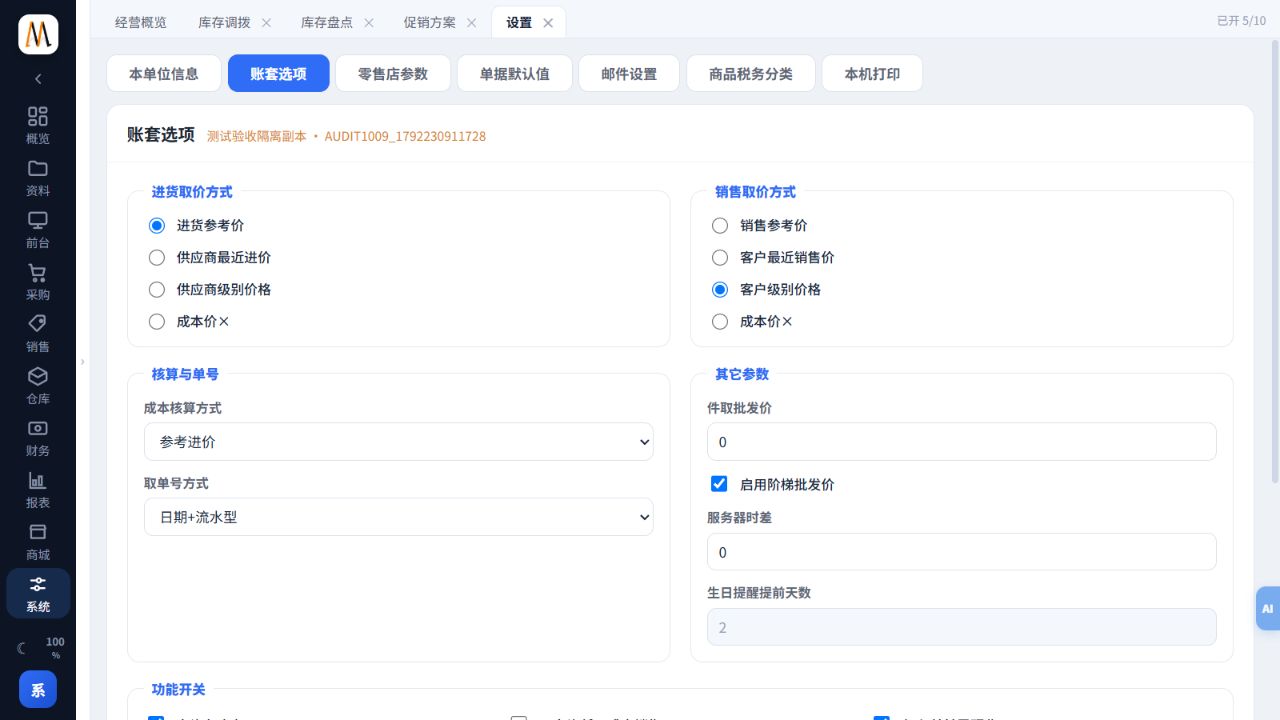
Document, stock and printed units are consistent; scanning a case does not reduce stock by one bottle.
Quantity column names vary by document. Cost adjustment is not a normal quantity-selling workflow.
Create suppliers, customers and settlement accounts
Suppliers and customers identify business counterparties; settlement accounts identify cash and bank funds. Maintain them separately.
Steps
- Add the supplier or customer under Data with its code, name, contact details and category.
- Check supplier purchase-price levels and customer selling-price and credit settings.
- Validate the cut-off and evidence for opening balances so historical documents are not counted twice.
- Create the settlement accounts actually used and reconcile their opening balances. Use names staff can distinguish.
- Select the saved records in purchase, sales and payment headers to verify their identities.
Documents use the intended counterparty and payments use the actual cash or bank account.
Credit fields do not replace management credit decisions. Actual restrictions depend on configuration and prompts.
Warehouses, bins and opening stock
Warehouses separate stock ownership or location; bins identify positions within a warehouse. Opening stock records quantities held at the start of the books.
Steps
- Maintain warehouse codes and names and assign stores or operations to the correct warehouse.
- Enable bins only when needed and align system bin names with physical shelf labels.
- Open Opening Stock Entry Doc, select warehouse and date, and enter goods, quantities and supported costs.
- Reconcile base-unit quantities and values with the opening count, save and approve, then check Current Stock.
- Do not enter the same goods both as opening stock and a purchase receipt. Trace discrepancies before adjusting.
The approved opening document produces the agreed initial quantities.
Creating products does not initialize stock, and renaming a warehouse does not transfer goods.
From purchase order to goods receipt
A purchase order records what was ordered; a purchase receipt records what arrived. Only the approved receipt changes stock.
Steps
- Create a purchase order with supplier, warehouse, date, quantities and prices, then save and approve.
- When goods arrive, open Purchase In and reference the corresponding order from More → Doc Reference.
- Adjust to the actual received quantity and check units, prices, batches and dates. Do not receive goods that have not arrived.
- Record any actual payment and settlement account, or leave the correct amount on account. Save and approve.
- Check Current Stock, the supplier balance and the order’s received/remaining quantities. Reconcile later deliveries against the same order.
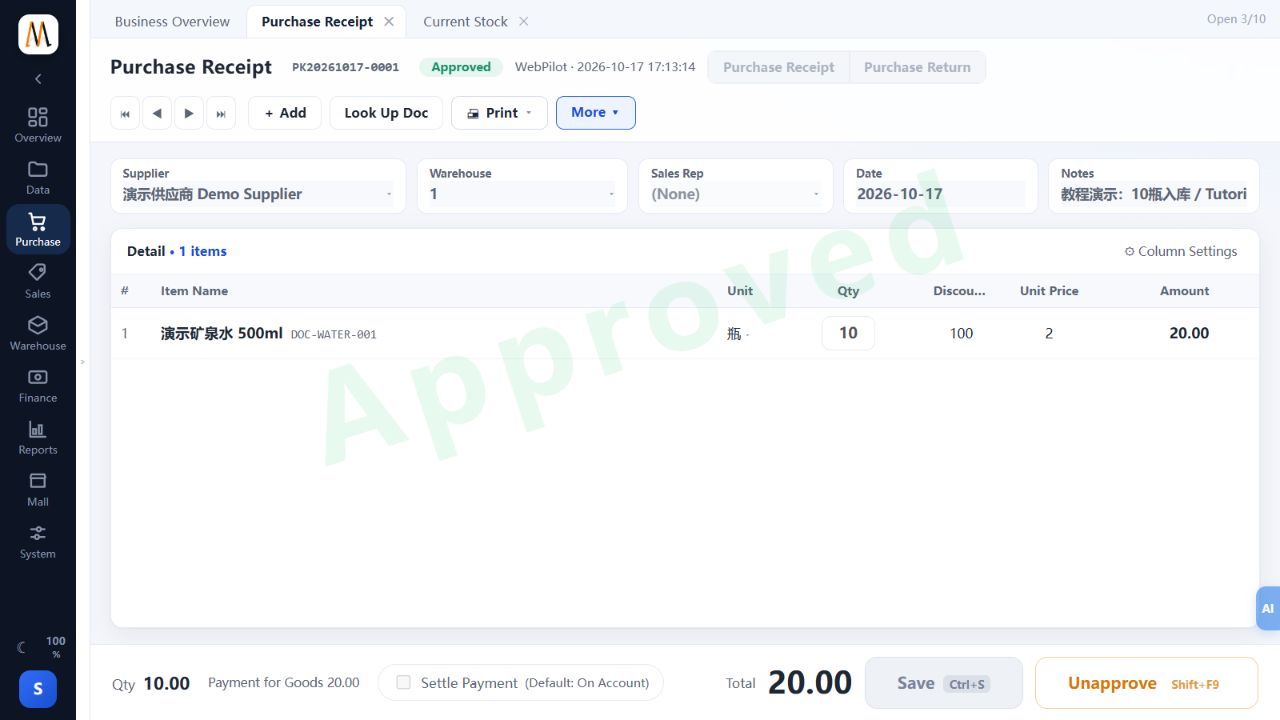
Received goods increase stock while outstanding order quantities remain traceable.
The linked worked example verifies receipt of ten bottles at 2 each; it does not establish every supplier-settlement or hardware scenario.
Return purchases and reconcile supplier credits
Use a purchase return for goods sent back to a supplier. Stock and account adjustments are separate from receiving an actual refund.
Steps
- Open the purchase receipt page in Purchase Return mode and verify supplier, warehouse and date.
- Reference the original receipt where available, retain its product/unit/batch basis and enter the quantity actually returned.
- Check the return direction and amount, save and approve, then inspect stock and supplier balances.
- Record an actual supplier refund or later offset through the appropriate finance workflow; approval does not prove bank receipt.
- Reconcile the original receipt, return and payment records against the supplier’s acknowledgment.
Returned quantities match evidence and stock, counterparty and cash records agree.
Do not reduce the original receipt and also create a return for the same goods.
From sales order to customer delivery
A sales order records demand; Sales delivery records actual dispatch. This is the normal selling workflow in Enhanced Edition.
Steps
- Create the sales order with customer, warehouse, date, quantities and prices; save and approve.
- Open Sales delivery, choose delivery mode and reference the order from More → Doc Reference.
- Check actual dispatched quantities, stock, variants, units and prices. For partial deliveries, include only the goods leaving now.
- Record actual settlement and account, or verify the amount left on credit. Save and approve before issuing the document.
- Check Current Stock, customer receivables and order completion.
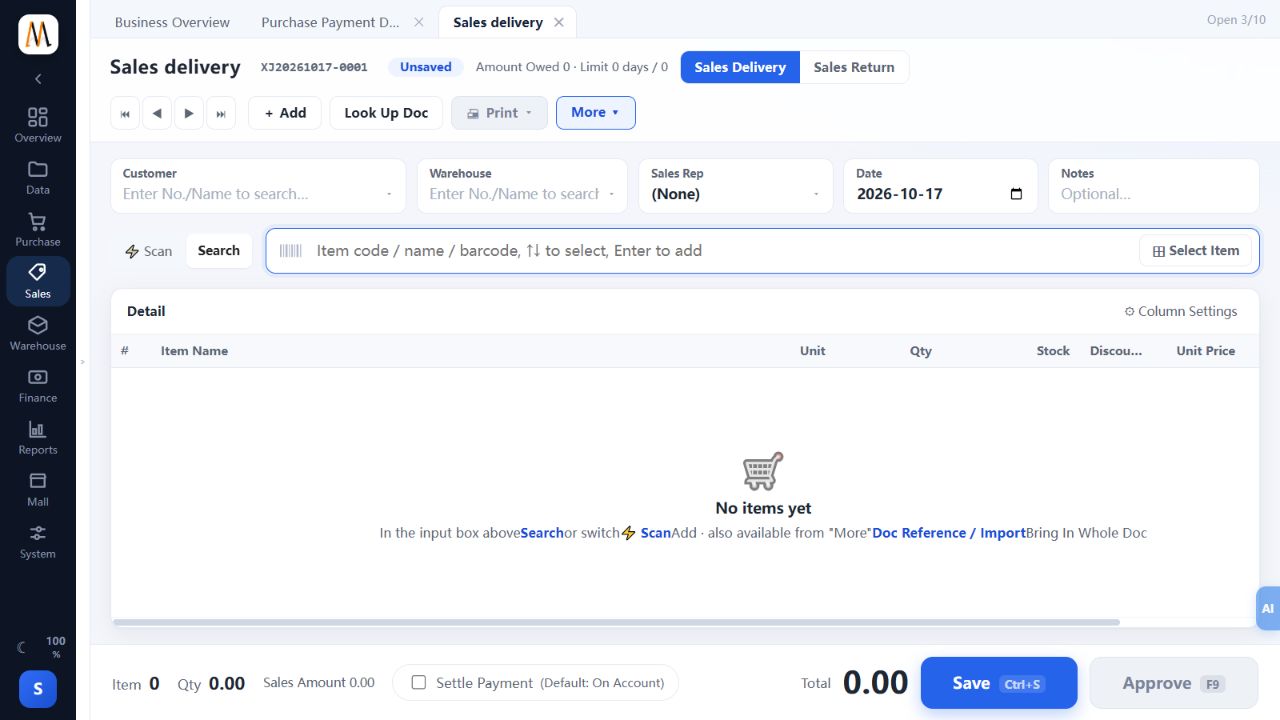
Approved dispatch reduces stock, payments and balances are explainable, and remaining order quantities are not dispatched twice.
A normal delivery document is not automatically a tax-authority-authorized invoice. Enhanced Edition has no tax-authority integration.
Customer returns and receivable adjustments
Use a sales return for goods received back from a customer and trace it to the original delivery. Stock, receivable and refund movements are separate checks.
Steps
- Switch Sales delivery to Sales Return and select customer, warehouse and date.
- Reference the approved original where possible and enter actual returned quantities with the original unit, batch, price and tax basis.
- Save and approve, then check the stock increase and customer balance change.
- For amounts already paid, process the approved refund or future credit arrangement with payment evidence.
- Trace the return to the original and avoid recording a POS return again as an independent back-office return.
Returned goods, stock and receivable/refund records correspond.
If a tax invoice exists, the applicable country-specific correction process is additional to this stock workflow.
Order deposits and partial fulfilment
An order deposit records money, not a goods movement. Check how the deposit is applied when the order is fulfilled.
Steps
- Select prepayment on a purchase order or advance receipt on a sales order, enter the actual amount and account, and verify payment evidence.
- After approval, check the generated payment record and advance balance. The order itself does not move stock.
- Reference the order when receiving or delivering goods and inspect the brought-forward advance and current settlement.
- For partial fulfilment, verify which document claims the advance. Do not manually enter the same deposit again on later documents.
- Use the displayed outstanding amount for allocation and reconcile the order, money record and fulfilment document together.
Each deposit is counted once and cumulative payments agree with outstanding balances.
Advance allocation has defined limits. Partial delivery does not imply that every delivery may apply the entire deposit again.
Save, approve, unapprove and correct documents
Save retains a draft. Approval applies the effect appropriate to the document type. Orders and count-entry sheets do not behave like stock receipts and deliveries.
Steps
- Complete counterparty, warehouse and date, then enter lines and reconcile quantities, prices and totals.
- Save and record the number and draft state. A number alone does not mean stock has changed.
- Approve only after verifying the business facts, then confirm approved status and the relevant stock or account result.
- Approved documents are generally read-only. Check references, settlements and source restrictions before authorized unapproval.
- Use the applicable correction workflow where later business or tax records exist. Deletion is not a return, and POS-generated stock copies should not be arbitrarily unapproved.
Document status matches its effect and corrections preserve downstream and account consistency.
Common keys are Ctrl+S Save, F9 Approve and Shift+F9 Unapprove, subject to the current UI. Not every approved document can be freely reversed.
Import lines, copy documents and print
Importing and copying reduce typing, but the resulting document still needs review, saving and approval.
Steps
- Use file import from More on an unapproved document. Prepare the required template or barcode/quantity file and separately verify the header.
- Review matched and unmatched lines, units and prices. AI recognition needs connectivity and line-by-line review.
- When copying an old document, reset and verify date, counterparty, warehouse and quantities so fulfilled business is not duplicated.
- After saving and approval, use the print menu to preview the intended layout and check header, goods, total and paper size.
- Move layouts between companies using the matching template type, save separately and test. Layout files do not contain the source company’s business records.
Imported/copied details are correct and print content agrees with the current document.
A recognized product name is not proof of a matched item. Physical output also depends on local drivers, fonts and paper settings.
Check stock and trace movements
Current Stock answers how much is available now; movement reports explain how it changed. Use the same warehouse, item and unit when reconciling.
Steps
- Open Warehouse → Current Stock and filter warehouse and item code, barcode or name.
- Check unit, quantity and value. Distinguish base quantities from packaging quantities where multiple units are enabled.
- Use movement or document reports with a defined date range to inspect opening balance, receipts, issues and closing balance.
- Open contributing documents and check approval, return direction and any POS source.
- Reconcile opening plus receipts minus issues, including transfers, stocktakes and losses rather than purchases and sales alone.
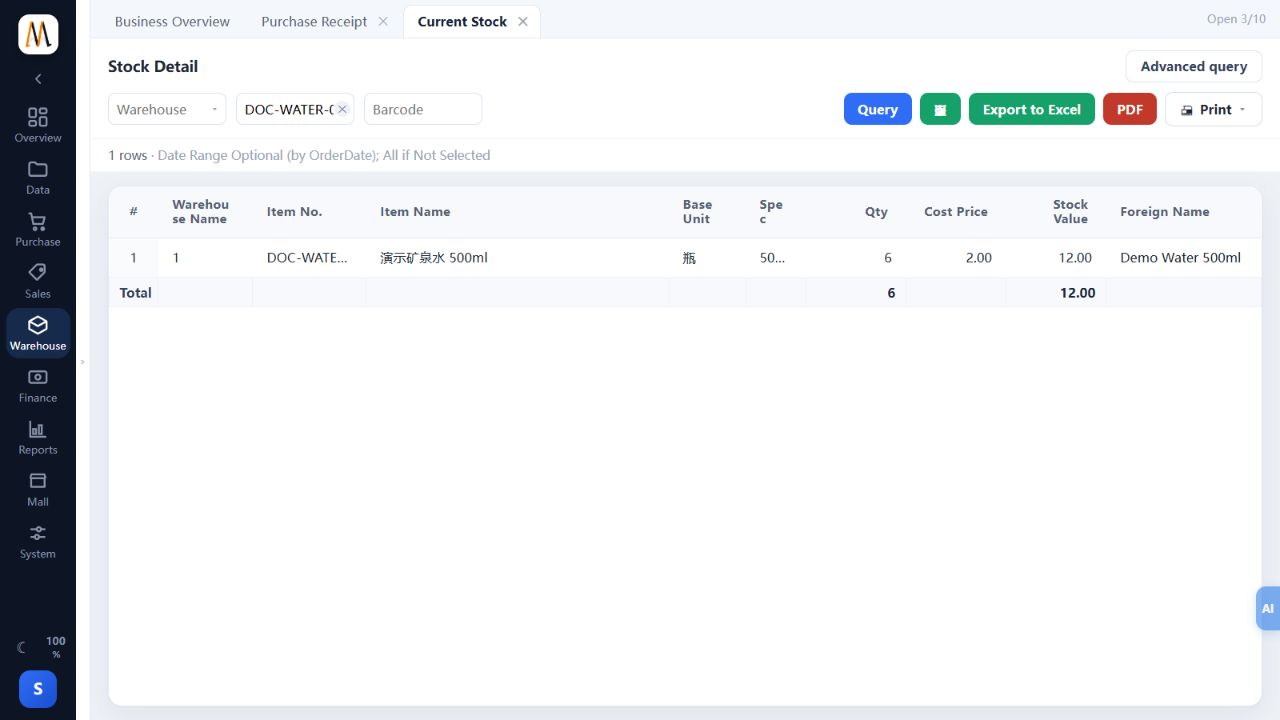
Original business records explain current quantities within the same scope.
Masked cost/profit fields can indicate permission limits; they do not mean zero.
Transfer stock between warehouses or stores
Approval reduces the source warehouse and increases the destination. Physical transit and handover still require operational control.
Steps
- Create Stock Transfer with different source and destination warehouses.
- Enter the actual goods, quantities and batches, and check source availability.
- Verify date, responsible person and notes, then save and obtain approval.
- Query both warehouses and reconcile the corresponding decrease and increase.
- Have the receiving party count goods and retain handover evidence; handle discrepancies through an authorized correction.
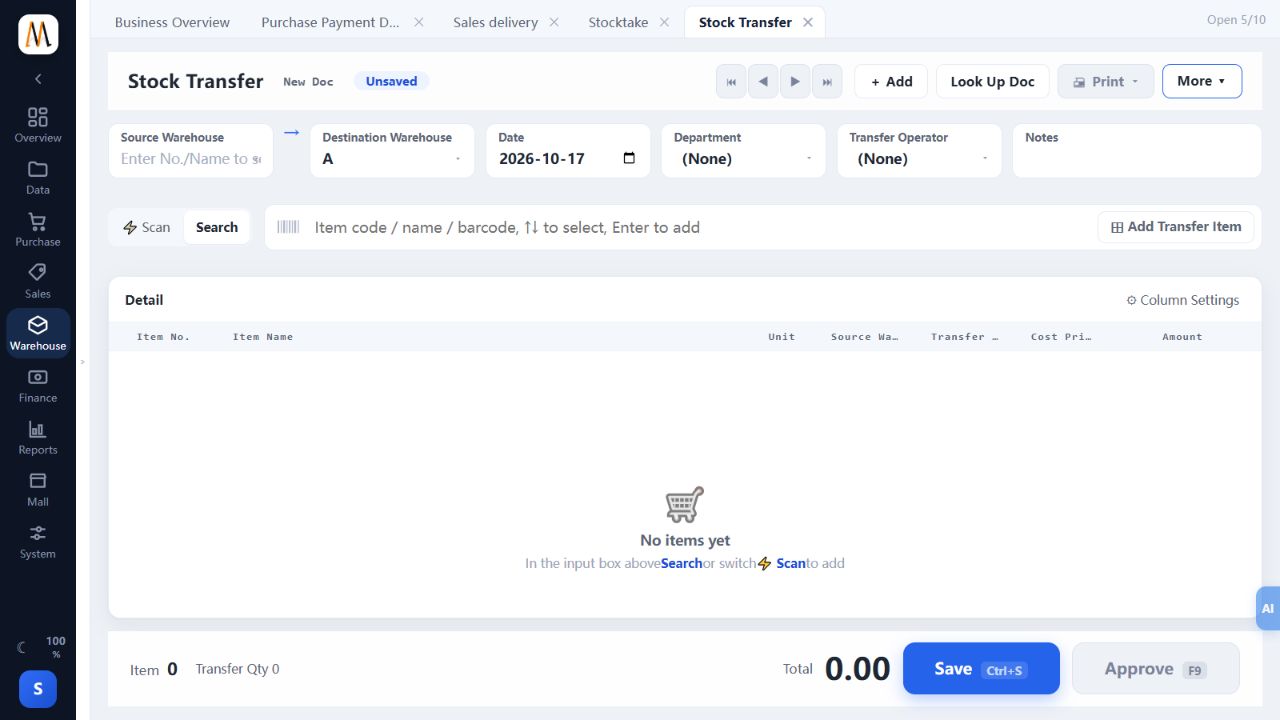
Both warehouse movements and the physical handover agree.
This document does not imply a separately configured transit, second-receipt or intercompany settlement workflow.
Stocktake: partial, full and multi-person counts
Enter physical counts and approve their differences from book quantities. Use a partial count when counting only part of a warehouse.
Steps
- Agree the count cut-off and how movements will be paused or logged. Open Stocktake, select the warehouse and add the items being counted.
- Enter actual quantities and verify units and batches instead of copying book quantities.
- Save, then choose the correct approval scope. Partial count affects listed items; full count treats omitted items in scope as zero, so the warehouse must be fully counted.
- For multiple teams, create a Method 2 stocktake and associated count-entry documents; enter and approve each team’s counts.
- Summarize entries into the main stocktake, investigate missing/duplicate counts, then approve the main document and inspect stock.
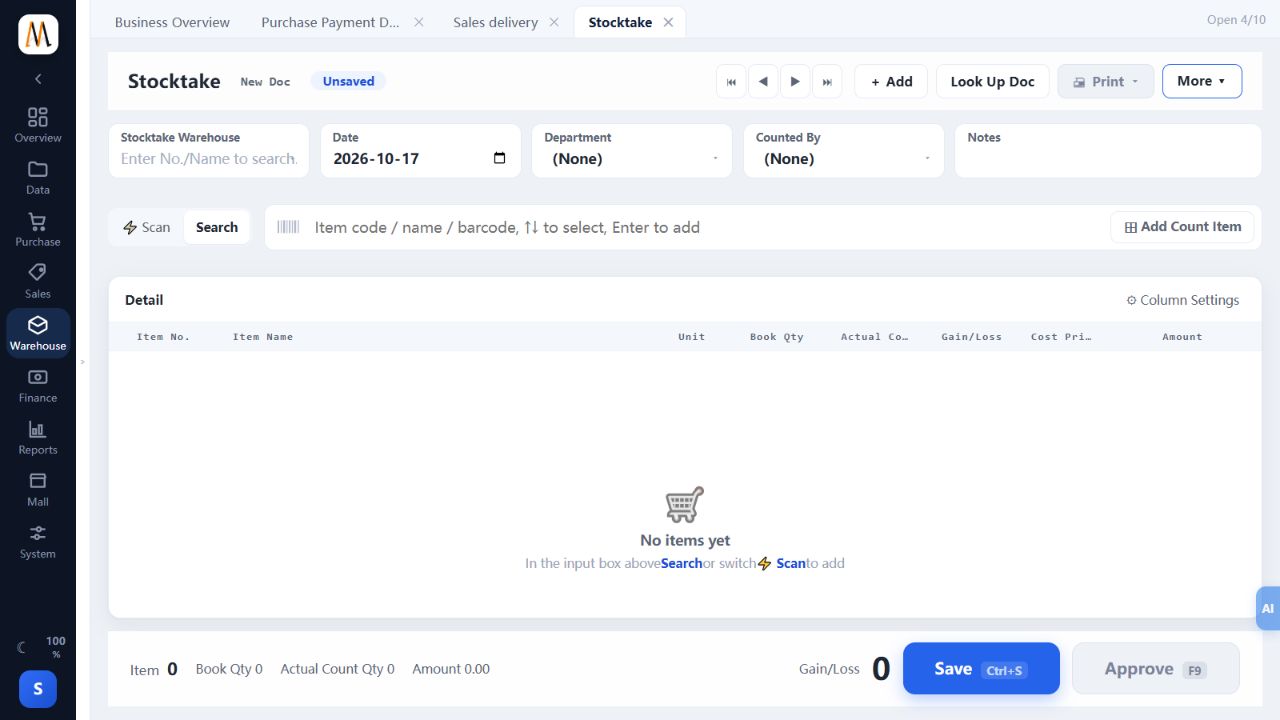
Differences have been checked and approved stock agrees with the confirmed count.
Approving a Method 2 count-entry sheet does not itself adjust stock. Full count is not simply a faster approval option.
Record losses and other stock movements
Use a loss document for damage, loss or disposal. Use other receiving/dispatch types for stock movements outside purchasing and sales.
Steps
- For losses, select warehouse and date, enter the actual lost quantity and record the reason.
- Verify the physical batch when applicable, then save, approve and check the stock reduction.
- For other movements, choose inbound or outbound first, then the matching movement type and warehouse.
- Enter quantities, check costs and notes, then save, approve and verify the direction.
- Keep supporting evidence by document number. Do not disguise sales as losses or use an expense document to issue stock.
Every adjustment has an identifiable reason, type and approval trail.
An incorrect direction reverses the intended stock effect; check it before approving.
Batches, expiry, traceability and bins
Batch control requires both the company option and the product flag. Bin control is separate. Physical lots still need to match recorded lots.
Steps
- Enable batch control and the warning horizon, then mark the products that require batch tracking.
- Enter batch and production/expiry dates on receipts, separating different lots of the same item. Check batch stock after approval.
- Verify allocated batches against actual picking. Adjust quantities in the batch selector when necessary; warnings do not replace shelf inspection.
- Use Batch/Expiry views for near-expiry, expired and lot searches, then trace approved source and destination documents.
- For bin movements, select warehouse, bin and direction and verify bin quantities after approval. These movements do not change total warehouse stock.
Lots and dates match physical goods, movements are traceable and bin totals are checked separately.
Back-office allocation and POS deduction rules differ; do not claim the system can never sell expired stock. Calibration and disabling product batch tracking require careful review because lot distribution changes.
Assembly, disassembly and internal material movements
Assembly consumes components and creates finished goods; disassembly reverses that direction. Material issues and returns track internal use.
Steps
- Maintain the composition with correct component units and quantities; never make an item a component of itself.
- Select the finished item, assembly quantity and warehouse, then expand its BOM or enter components and check costs.
- After approval, verify finished-stock increases and component decreases. Check the opposite directions for disassembly.
- For material issues, select department, person, warehouse and quantity; use material returns for goods physically returned.
- Reconcile handover evidence and avoid issuing the same materials again through another movement type.
Finished/component and issue/return movements have the correct direction and traceable quantities.
These stock operations do not establish a complete manufacturing planning or production-costing system.
Adjust or recalculate costs
Cost affects inventory value and gross profit; selling price affects what a customer pays. They are different controls.
Steps
- First investigate incorrect purchasing, units, stocktakes, negative stock or valuation settings and correct the originating business where appropriate.
- For an authorized adjustment, add items in Cost Price Adjustment Doc and check total stock, old cost and proposed cost.
- Review the value impact, save and approve, then inspect item cost and stock value. Current adjustment applies across warehouses for the item.
- Treat cost recalculation as historical maintenance: back up, define its scope and arrange verification with the responsible person.
- Recheck affected inventory/profit reports and retain the reason and document number.
Cost changes have a documented basis and their reporting impact has been reviewed.
Do not directly edit database cost values or change costs merely to improve a report’s appearance.
Pay suppliers and allocate payables
Use Purchase Payment Doc to record supplier payments. Allocation matches actual money to outstanding documents; Accounts Payable itself is a query view.
Steps
- Select the supplier in Accounts Payable and reconcile open documents against the supplier statement.
- Create Purchase Payment Doc with the same supplier, Payment Reconciliation type, actual settlement account and date.
- Enter Payment This Time against each document and any allowed round-down on that row. Their total must not exceed the outstanding amount.
- Check the actual payment total, save and approve. Review each row even after using Auto-assign.
- Recheck the original balances and account movement; leave unpaid remainders for later allocation.
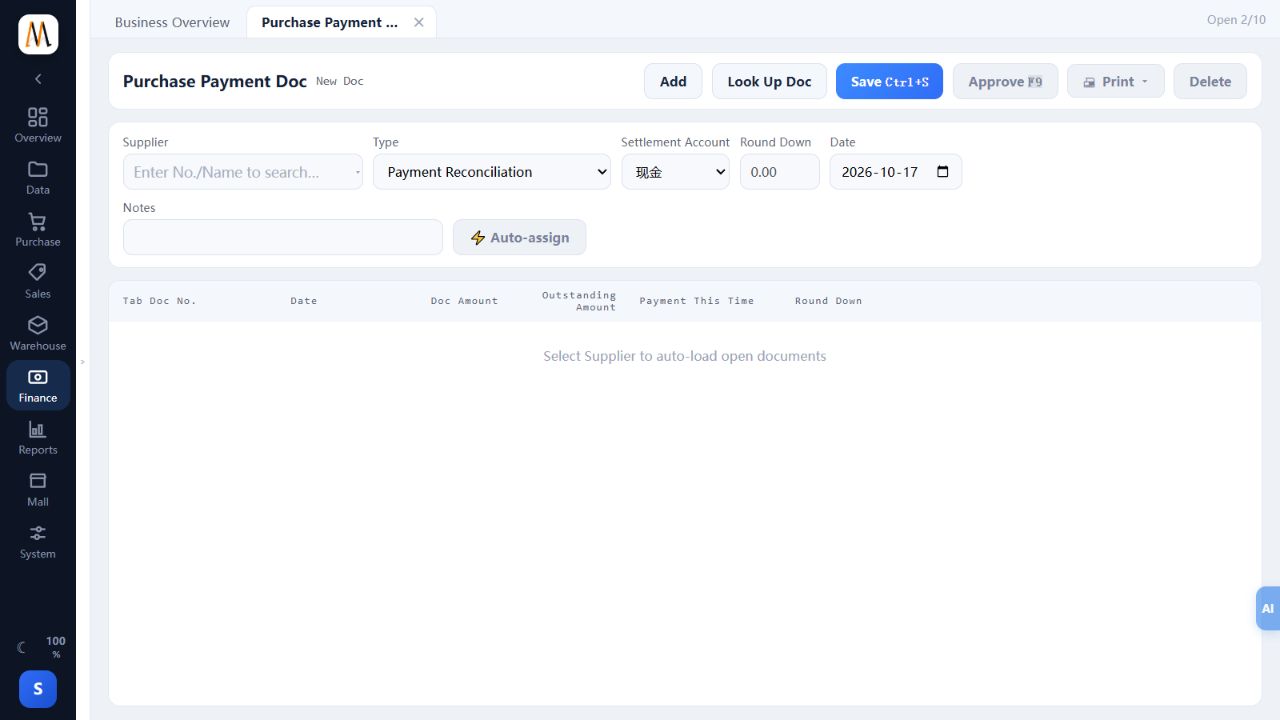
Payables decrease by payment plus agreed rounding, while funds decrease only by actual payment.
Recording a local payment document does not transfer money to the supplier’s bank.
Receive customer payments and allocate receivables
Use Sales Receipt Doc when a customer pays an existing debt. A new delivery is not a substitute for collecting an old balance.
Steps
- Select the customer in Accounts Receivable and reconcile open references against the actual payment evidence.
- Create Sales Receipt Doc using receipt allocation, the receiving account and correct date.
- Enter the amount received against each document plus any authorized rounding. Do not assume every outstanding document has been paid.
- Save and approve, then verify customer and account balances, including any unpaid remainder.
- Keep customer and date filters consistent when printing or exporting statements.
Actual money, receipt documents and original outstanding amounts correspond.
Distinguish receiving new cash from applying an existing advance so funds are not counted twice.
Advances, offsets and direct payments
The current payment pages include allocation, advances, applying advances, transferring balances to advances and direct payment/receipt types. Choose the business meaning first.
Steps
- For actual money against known open documents, choose allocation and distribute it to those documents.
- For a customer deposit or supplier advance, choose the corresponding advance type and verify funds and advance balances.
- To use an existing advance, choose Apply Advance to Receivable/Payable and inspect available balance and original documents. This is not another cash payment.
- Have the finance lead control balance-to-advance and direct-payment types, including their direction and allocation implications.
- After approval, inspect counterparty, advance and cash ledgers together.
Funds are recorded once and balances remain in their correct categories.
Choose the type that matches the business event. If the balance direction is unclear, have the finance lead check the original documents and counterparty ledger first.
Allocate rounding correctly: 99.50 plus 0.50 settles 100
Payment This Time is actual money. Round Down is an authorized waived difference. The header shows the row total rather than a second adjustment.
Steps
- For an outstanding 100 paid with 99.50 and an agreed waiver of 0.50, enter 99.50 as payment and 0.50 as row rounding.
- Verify their sum is 100 and does not exceed the balance. Do not enter payment 100 plus rounding 0.50.
- Save and approve, then confirm the original outstanding amount is zero.
- For a receipt, funds increase by 99.50 and debt decreases by 100. For a supplier payment, funds decrease by 99.50 and payables decrease by 100.
Funds reflect actual money while document and counterparty balances reflect payment plus rounding.
Use appropriate authorized workflows for discounts, returns and bad debt rather than arbitrary rounding entries.
Expenses, other income and account transfers
Trade settlement, operating expenses and transfers between accounts are different transactions.
Steps
- Use Other Expense Doc for costs such as rent or utilities, selecting the paying account and the appropriate expense/income item.
- Use Other Income Doc for miscellaneous receipts with the receiving account and actual amount.
- Use Bank Deposit/Withdrawal Doc for cash deposits or account transfers, selecting distinct source and destination accounts on each line.
- After approval, reconcile account movements and income/expense reports. A transfer is not new sales revenue.
- Create missing expense/income items under Data; distinguish specific items from their categories.
Funds match the evidence and transfers, supplier/customer payments and expenses remain separate.
These documents record business accounts; actual bank instructions are completed through the store’s banking process.
Query, filter, export and print reports
Choose the business scope before dates, warehouse and counterparty filters. A truncated result is not a complete dataset.
Steps
- Open Reports → Report Statistics and search a report or browse purchasing, sales, stock and finance categories.
- Set the dates and relevant filters, then confirm treatment of returns and business sources.
- Use advanced conditions when needed; recheck company and report scope when loading a saved query.
- Drill from summary to detail and original documents. Inspect totals and row-limit notices, narrowing or splitting the period if necessary.
- Preview filters and columns before Excel/PDF export or printing. Tax, multi-unit and cost-permission restrictions apply consistently.
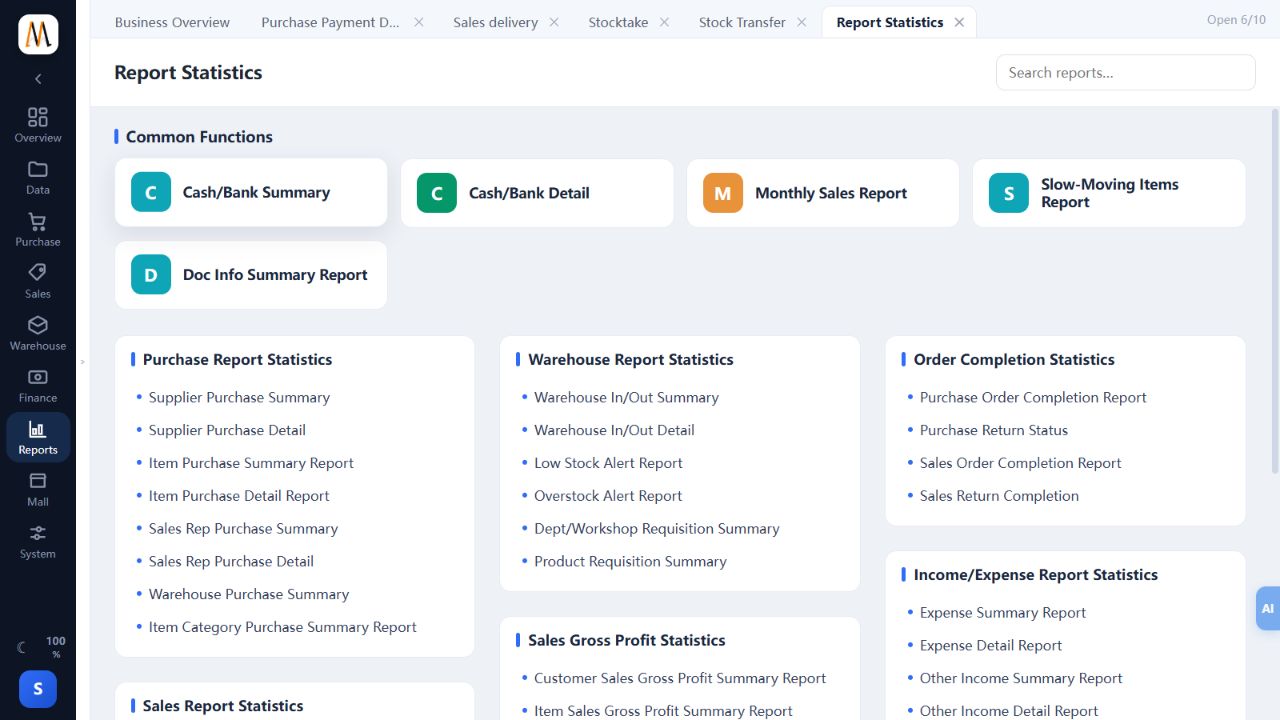
Screen, exports and printouts use the same scope and can be traced to source documents.
The report-centre screenshot shows navigation. Availability depends on company setup and permissions.
Distinguish sales, receipts, gross profit and cash flow
Sales are not the same as today’s receipts, and gross profit is not the cash drawer balance.
Steps
- For sales performance, use the intended sales-date and net-sales basis and check returns, discounts and tax treatment.
- For money received, inspect payment records and methods. Collecting an old debt increases cash today without creating a new goods sale.
- For gross profit, verify cost of sales and trace cost anomalies to purchasing, units or negative stock.
- For cash, separate opening float, net cash sales, refunds, withdrawals and other cash movements.
- Avoid double counting POS sales and their back-office stock copies, and align dates, warehouses and sources before comparing reports.
Differences between trading activity and money movement can be explained.
Management reports should not be described as automatically completing local statutory financial accounts.
Enhanced Edition start-up: products to sellable stock
MISAll Business Manager starts with product and counterparty records, then approved receipts establish stock. POS checkout is not a prerequisite.
Steps
- Create products, suppliers, customers, warehouses and settlement accounts using chapters 028, 032 and 033.
- Decide whether you are opening with existing stock or recording new purchasing. Use opening stock for the former and receipts for the latter without duplicating goods.
- Complete a receipt as in chapter 038 with actual quantities and units, then save and approve.
- Verify item, warehouse and quantity in Current Stock before selling.
- Use the ten-bottle example only in practice; live quantities and costs must come from real business evidence.
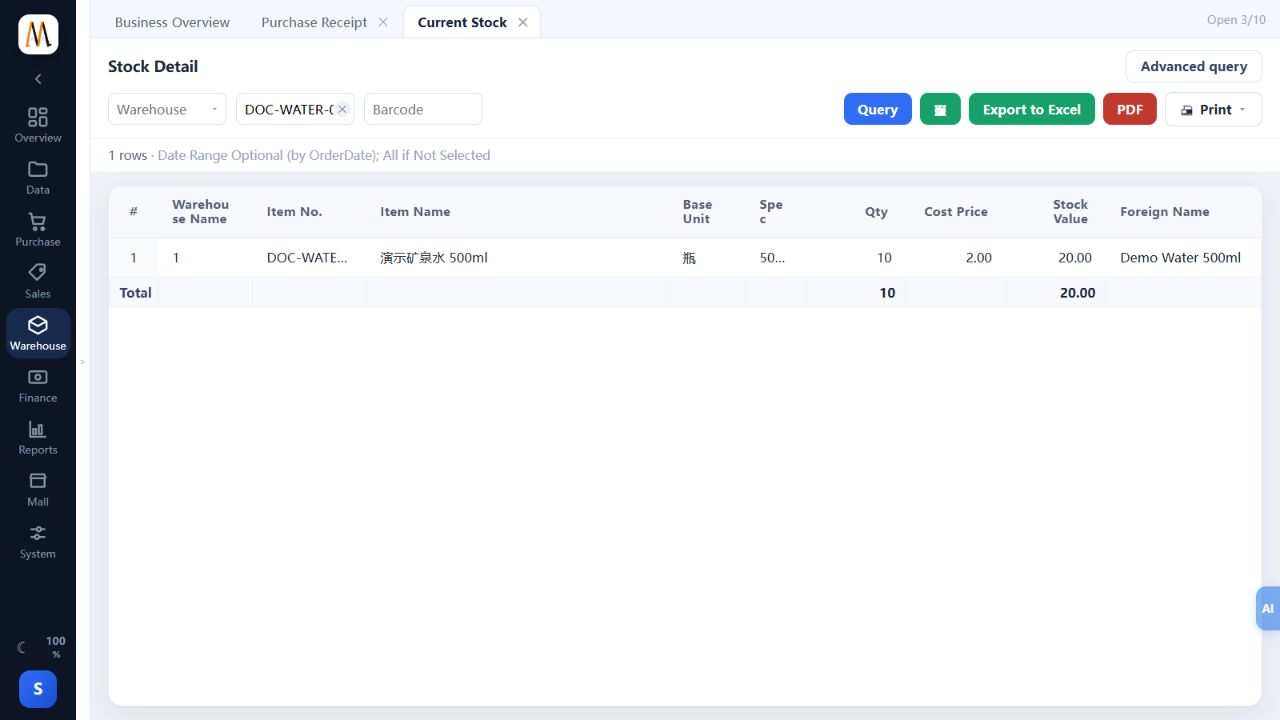
Products have traceable stock in the intended warehouse and can enter the delivery workflow.
Enhanced Edition has no POS membership/promotion management, Audit Centre or tax-authority interface. Do not change shared company settings merely to seek those menus.
Enhanced purchasing cycle: receive 20 and pay 20
Reconcile receiving, approval, payables and payment together. The following figures are a teaching example.
Steps
- Create a receipt of ten bottles at 2 each. If buying on account, do not enter a payment at receiving.
- Approve and verify stock increases by ten and the supplier has the corresponding 20 outstanding.
- After actual payment, create a supplier payment allocated to that receipt: payment 20, rounding zero and the actual paying account.
- Approve, then check zero outstanding on the receipt and a funds decrease of 20.
- If the receipt was already settled for 20, do not record the same payment again. Inspect its settlement first.
Quantity ten, purchase value 20 and funds 20 are traceable without duplicate payment records.
Receipt screenshots are verified. The payment extension is an illustrative example, not an actual bank transaction.
Enhanced sales cycle: deliver 7, receive 5 then 2
Part payments leave a customer receivable. Later receipts settle that original balance without creating another delivery.
Steps
- Create delivery for two bottles at 3.50, total 7, with the correct customer and warehouse.
- If receiving 5 now, enter that amount and settlement account, leaving 2 on account; save and approve.
- Check the customer’s original document has 2 outstanding and stock decreased by two bottles.
- When the customer pays the remaining 2, allocate a Sales Receipt Doc to that original document with zero rounding and approve.
- Confirm the document is settled, cumulative receipts are 5+2=7 and stock moved only once.
Sales 7, receipts 7 and outstanding zero reconcile, with only two bottles dispatched.
This is an illustrative end-to-end scenario; verify pricing and tax settings in the actual company.
Assign roles and warehouse data scope
Module access, action permissions and data scope control where users can go, what they can do and which records they can see.
Steps
- Define roles for data maintenance, purchasing, warehouse, sales, finance and management.
- In Operator Permission, assign viewing and the required create, edit, approve, unapprove, print and export actions.
- Limit warehouse or sales-representative scope where needed and review cost, purchase-price and price-change rights.
- Sign in as the operator and test both allowed tasks and intended restrictions, including exports and printing.
- Update rights when roles change. Investigate edition and feature gates as well as permissions when a button is unavailable.
Staff complete assigned work without access to unrelated restricted records.
Test permissions in an isolated environment instead of solving missing menus by granting everyone administrator rights.
Enhanced tax calculation, units and visible fields
Enhanced Edition can use configured ordinary tax calculation and multiple units, but has no tax-authority interface or tax daily/monthly reports.
Steps
- Review the business need before enabling tax or multiple units in company settings.
- For ordinary tax, verify source rules, product classification and tax-inclusive pricing; do not enable an unverified regional scheme.
- Maintain conversions and unit prices before testing multi-unit document quantities and totals.
- When disabled, related report columns and column options remain hidden, with exports using the same scope.
- When sharing a database with POS, respect the edition boundary without clearing tax-authority settings used by the other edition.
Documents display required fields and tested amounts and unit conversions agree.
Calculating tax is not tax-authority authorization. The business owner must confirm applicable rates.
Enhanced Edition scope and daily checklist
MISAll Business Manager covers products, purchasing, delivery, stock and counterparty accounts. It is not the entire POS menu inside another edition.
Steps
- Start by reviewing pending approvals, stock exceptions and outstanding balances for your role.
- Use receipts for arrivals, deliveries for dispatch, transfers for internal movements and finance documents for actual money.
- At the end of work, reconcile pending documents, stock movements, receipts/payments and backup arrangements.
- For retail checkout, membership promotions, shifts or fiscal invoicing, assess the appropriate POS and back-office configuration.
- Check entitlement, connectivity and version before using optional mall or AI functions described in the supplementary chapters.
The team completes a business cycle within the edition’s capabilities rather than substituting inappropriate documents.
Enhanced Edition has no Audit Centre or tax-authority interface. Its public name is MISAll Business Manager (Enhanced Edition).
Distinguish receipts, barcode labels and fiscal documents
Sales receipts, product labels and fiscal documents serve different purposes. Paper width alone does not identify them.
Steps
- Decide whether you need a customer receipt, a price label or a country-specific fiscal document.
- Print ordinary receipts from checkout/history and labels from the product or supported receiving workflow with the correct quantity.
- Verify the unit barcode and price on labels so a case label does not display a bottle price.
- Generate fiscal documents through the configured country workflow rather than imitating their appearance in an ordinary template.
- Record the printer, paper, layout and test result for each output.
Purpose, data source and physical device match.
An ordinary receipt is not described as a universally valid tax invoice.
Troubleshoot scanners, scales, drawers and displays
Check the device and connection before software settings to separate wiring faults from data issues.
Steps
- Test the scanner in a plain input field for complete characters and an ending Enter, then return focus to the POS scan box.
- For label scales, match the barcode format. For serial scales, check port, baud rate and weight unit.
- Connect the drawer to the specified interface and verify printer/trigger settings; similar-looking sockets are not necessarily compatible.
- Check serial displays and secondary monitors separately for power, cabling, display mode and software setup.
- Change one setting at a time, record the original value and test result, and return to a known configuration when needed.
The fault can be localized to hardware, connection or software setup with a repeatable test.
Use the manufacturer’s wiring and electrical specifications, not connector appearance alone.
Print layouts, paper, fonts and labels
Layouts determine content and placement; local settings choose the output device. Saving a new layout does not necessarily make it active.
Steps
- Use the authorized design entry in the print menu or POS layout function, and copy/save a new layout before editing.
- Set actual paper width, margins, fonts and line columns. Insert data fields rather than typing a single transaction’s amounts.
- Preview long names, multiple lines, tax, totals and barcodes, checking page breaks and clipping.
- Save and explicitly check the active layout, then print from the business page. Verify shared layouts and local printer selection separately.
- Import/export within the matching document type. For labels, check dimensions, gaps, counts and unit prices separately.
The active layout matches the preview, key fields fit and barcodes scan.
Fonts and modes affect physical output. Preview is not a physical printer test, and fiscal-device formats differ from ordinary templates.
Payment succeeded but nothing printed
Establish the transaction state before investigating printing. Do not charge again when a successful sale number exists.
Steps
- Record the success number and find the original sale, checking amount and methods.
- Inspect the print toggle, selected printer and active layout, including whether output went elsewhere.
- Check power, paper orientation, paper/cover warnings, offline status and the system print queue.
- If the device self-test works, investigate the driver, paper and application output mode.
- After correction, reprint the original sale. For uncertain fiscal results follow chapter 076 instead of issuing another fiscal document.
One original sale remains and any replacement output refers to it.
Reprinting an ordinary receipt is different from issuing a new tax invoice.
Barcode not found or wrong selling price
Check product data, unit, pricing rules and synchronization in that order.
Steps
- Search the full barcode in Item Data and inspect primary/auxiliary codes, inactive status and variants.
- Check whether the scan identifies a bottle or case and verify the unit conversion and price.
- Review customer level, membership, promotions, tiers, manual overrides and validity dates.
- For offline tills, check the local copy and refresh it online without clearing pending sales.
- Test one item, the threshold quantity and a quantity below the threshold, recording expected and actual prices.
The final price has an identifiable rule and the barcode selects the intended item and unit.
The reference selling price is not necessarily the final price in every workflow.
Investigate stock discrepancies
Eliminate differences in scope and units before tracing documents. Stocktake is based on a physical count, not a shortcut to force totals to agree.
Steps
- Align warehouse, item, variant, unit and query time. Do not compare packaging quantities with base quantities.
- Check approval and dates, including returns, transfers, losses and counts.
- Inspect pending offline sales and avoid double counting retail sales and their stock copies.
- Reconcile batch totals separately from overall stock and bin totals separately from warehouse stock.
- Correct source-document errors through their workflow; use a verified stocktake for genuine physical gains/losses.
The difference is traced to scope, business records or a confirmed physical count.
Do not repeat opening stock or directly edit database stock to force agreement.
Troubleshoot server connection failures
Failures can originate in the network, server service, connection details or company. Preserve existing configuration and offline records.
Steps
- Determine whether one workstation or the whole shop is affected. Check the server first for store-wide failures and the local connection for isolated ones.
- Verify the server address after router/network changes and confirm the workstation is on the intended network.
- Test the configured address, port and company, then apply and reconnect. Have an administrator verify credentials privately.
- Use supported offline operation only where an initialized local copy exists; a newly installed workstation may have none.
- Record the exact error, time and affected computers for support instead of disabling all protection or deleting database files.
The failure scope is understood and the intended company and pending records are checked after recovery.
Network reachability alone does not prove database service or business sign-in is working.
Tax calculation, classifications and authority integration
Ordinary tax calculation computes document tax. Authority integration handles a specific country’s fiscal process. Setting a rate does not activate that integration.
Steps
- Have the responsible business adviser confirm the applicable treatment, then inspect the company tax switch.
- For legacy rules, verify store/back-office rates, product treatment and inclusive pricing before changing anything.
- For a regional scheme, save a draft, review affected products and locations, then obtain the responsible configuration decision. Cashiers should not improvise tax categories at checkout.
- Check normal, exempt/zero-rated and original-return examples against expected amounts.
- Validate country integration separately in its permitted test environment. Enhanced Edition provides ordinary calculation without authority menus.
Tax values are explainable and the enabled scope is distinct from country authorization.
No universal country rate or legal conclusion is supplied by a regional preset in this manual.
Missing menus, disabled buttons and hidden fields
Check edition, company options, permissions and document state in that order.
Steps
- Confirm the installed edition. Enhanced Edition does not gain POS or authority menus merely by granting permissions.
- Check multi-unit, tax, batch and bin switches; related hidden fields can be normal when disabled.
- Review operator/cashier rights and have an authorized person inspect masked costs.
- Approved, unsaved or empty documents can legitimately disable editing, approval or printing.
- Read the available hint and record the exact entry, state and version before escalating.
The restriction is identified as edition, feature, permission or business state.
Do not enable every option merely to make a button available.
Send a useful support report
A useful report identifies the same transaction and a reproducible sequence, rather than only saying “slow” or “wrong amount”.
Steps
- Record version, edition, language, store and online/offline state.
- Describe the menu, steps, expected outcome and actual message, with time and document number.
- For amounts include goods, quantities, units, prices, tax and methods; for stock include warehouse and approval state.
- Capture relevant screen context while hiding credentials, payment secrets and unrelated personal information.
- State whether all computers are affected, whether it repeats and what has already been tried. Preserve uncertain payments before further action.
Support can locate the event using its version, time and reference.
Never publish database credentials or full customer databases in tutorial comments.
Smart replenishment: suggestions to purchase-order drafts
Replenishment suggestions use stock, sales and outstanding orders. A responsible person still reviews suppliers, lead times and quantities.
Steps
- Open Purchase → Smart Replenishment and filter products/categories, reviewing urgency levels.
- Verify stock, unfinished purchase orders and recent sales, then align lead time, safety days and order cycle with the business.
- Adjust quantities and suppliers, checking the resulting price and packaging unit.
- Generate drafts for selected rows and inspect any split by supplier.
- Review and approve each purchase order before following the store’s supplier-ordering process. Review AI explanations or temporary factors as well.
Suggestions become traceable drafts and enter normal purchasing only after review.
A draft is not an order sent to the supplier or a guaranteed sales forecast.
Overview, daily activity, weekly reports and AI questions
Dashboards help identify issues; documents and detailed reports establish their causes. AI explanations do not replace source-record checks.
Steps
- Review the date and scope in Business Overview and follow pending-document or stock alerts to the relevant workflow.
- In daily activity, distinguish sale value from money received; an order advance can bring cash without a goods sale.
- Choose the weekly period, read both figures and commentary, and compare important changes with the underlying reports.
- Ask report questions with a clear period, warehouse/store and measure, such as slow-moving products this month.
- Before sharing or printing, inspect cost, customer and staff information and apply the appropriate access rules.
Summary findings can be traced to reports or documents and facts are distinguished from suggestions.
AI/network service availability depends on deployment. Generated commentary is not a guaranteed business decision.
Manage optional online-store products and orders
First verify the deployed shop and product mapping. A back-office menu does not mean an online shop is already live.
Steps
- Inspect shop identity, contact details, URL and deployment state, distinguishing test and live environments.
- Find products by code, select the intended items and verify their listed/unlisted status after a change.
- Check images, foreign names, prices and sale units against the actual storefront.
- Trace online orders to their sales workflow and fulfilment status, avoiding duplicate manually entered sales.
- Have the responsible operator control customer account creation and notifications; tests should not automatically email accounts to customers.
Storefront content, product records and order sources correspond.
Listing changes availability, not physical stock. Confirm the target shop before changing a live storefront so that test content is not published by mistake.
Notices, personal memos, logs and maintenance
Notices inform the team, memos track personal tasks and logs support tracing. None replaces a source business document.
Steps
- Create notices with a clear subject and content, checking the intended audience before saving and following editing permissions.
- Set a due time and text in Personal Memo, then update completion when done.
- Filter system logs by time, operator and action and compare with the original document reference.
- Use configured email or internal messaging only after checking recipients and content.
- Schedule upgrades, rebuilds, restores and cost recalculation through the maintenance process with backups.
Communication, tasks and tracing have clear purposes, and maintenance has an owner.
Check the audience before sending a notice. Confirm retention needs and backup status before clearing logs or performing maintenance.
Batch pricing, product images and barcode labels
Limit the product scope before a batch change and verify the target field. Selling price, reference purchase price and cost are not interchangeable.
Steps
- Open Data → Set Item Price, search the intended codes/names/barcodes and select only the relevant products.
- Edit the correct price column. For calculated prices, inspect the base value, factor and target, testing a small sample before saving.
- Maintain quantity breaks in tier pricing and verify quantities below and above each threshold in the selling workflow.
- Manage images against the correct item code and verify the actual storefront/device display when used externally.
- For labels, check selected products, unit barcodes, price and count; test one label before batch output.
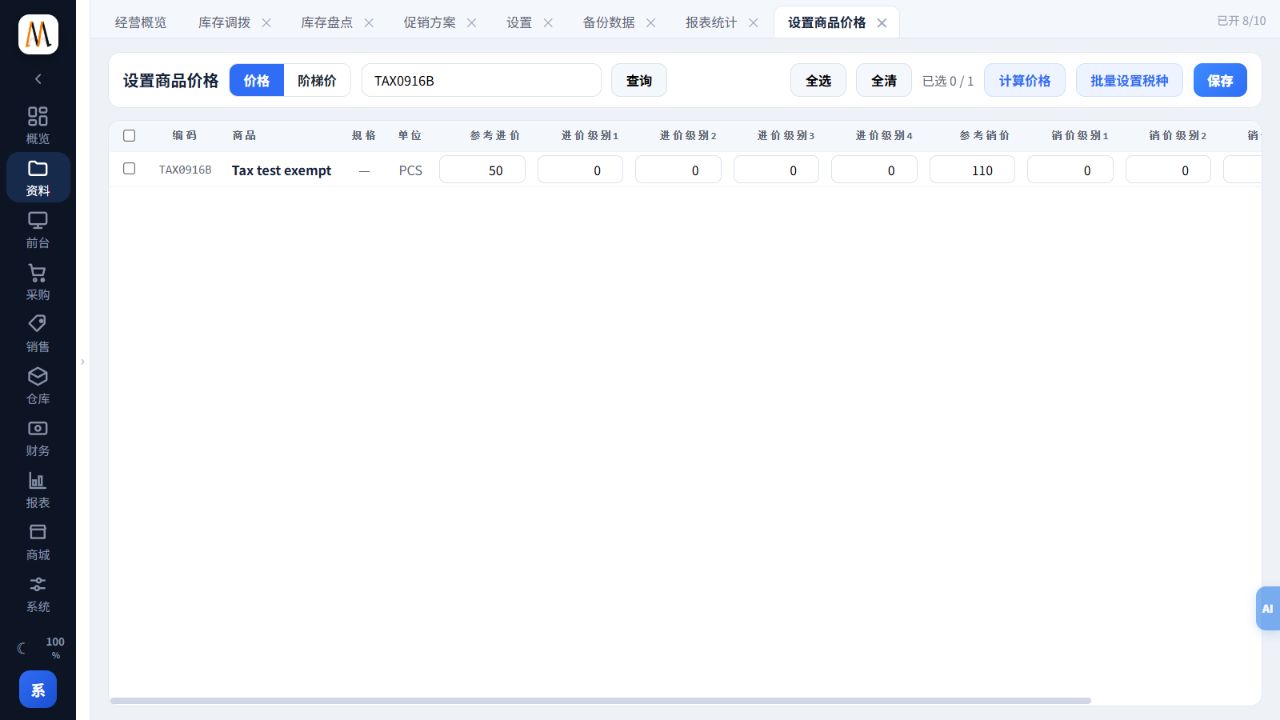
Only intended records/fields change and labels agree with price and unit data.
The pricing screenshot shows a test item in an isolated company. No price change was saved.