
MISAll Back Office — Complete User Manual · MISAll Business Manager (Enhanced Edition) — Complete User Manual
MISAll · DOC-047 · Inventory and stocktaking
Stocktake: partial, full and multi-person counts
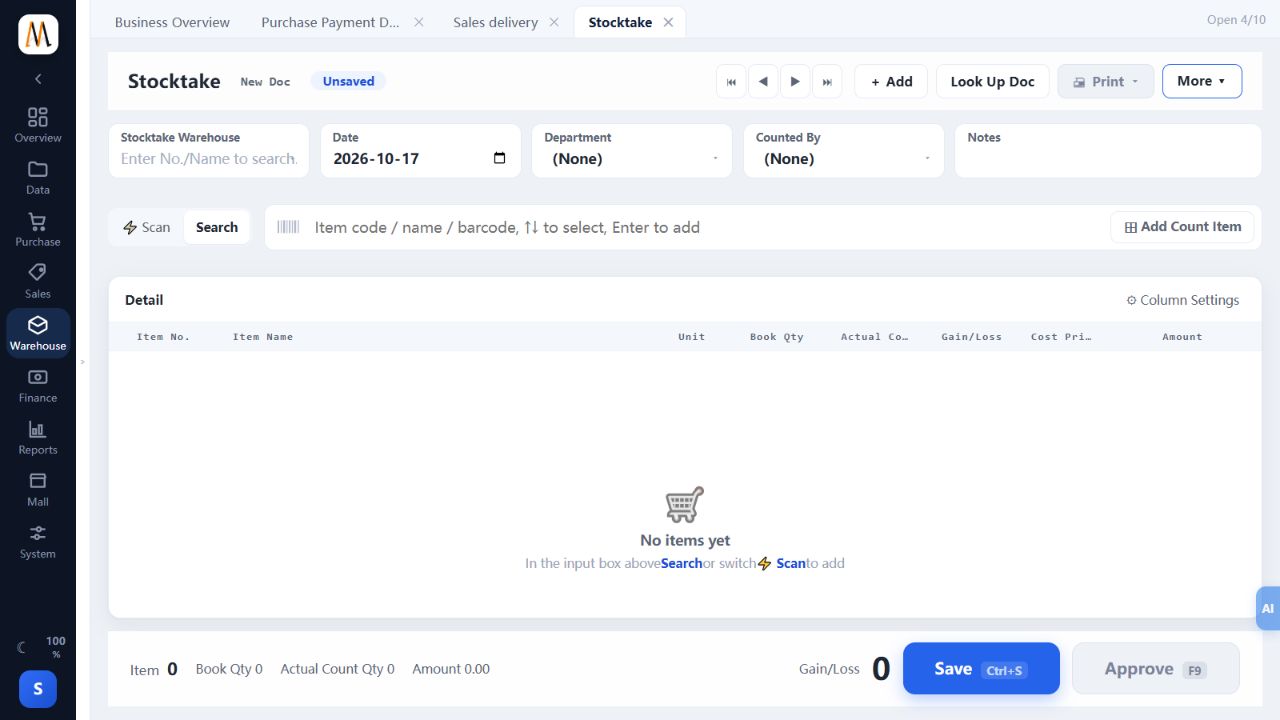
Enter physical counts and approve their differences from book quantities. Use a partial count when counting only part of a warehouse.
Steps
- Agree the count cut-off and how movements will be paused or logged. Open Stocktake, select the warehouse and add the items being counted.
- Enter actual quantities and verify units and batches instead of copying book quantities.
- Save, then choose the correct approval scope. Partial count affects listed items; full count treats omitted items in scope as zero, so the warehouse must be fully counted.
- For multiple teams, create a Method 2 stocktake and associated count-entry documents; enter and approve each team’s counts.
- Summarize entries into the main stocktake, investigate missing/duplicate counts, then approve the main document and inspect stock.
Check the result
Differences have been checked and approved stock agrees with the confirmed count.
Notes and troubleshooting
Approving a Method 2 count-entry sheet does not itself adjust stock. Full count is not simply a faster approval option.